
Smartphones have become the central hub for our entire digital lives, holding everything from personal photo galleries and private messaging threads to highly sensitive financial portfolios and banking applications. With so much critical information stored in a device that fits in your pocket, maintaining strict privacy is no longer just an option—it is a necessity. If you own a Samsung Galaxy device, you hold a significant advantage in the realm of mobile privacy. Instead of relying on ad-heavy, third-party security applications that drain your battery and compromise your data, Samsung provides robust, military-grade security tools built directly into its One UI operating system.
Whether you are trying to keep your banking apps safe from prying eyes, hiding a surprise gift-shopping app from your spouse, or simply ensuring your toddler does not accidentally delete your work emails when watching cartoons, Samsung has a dedicated solution. This comprehensive guide will walk you through every native method available on Samsung Galaxy devices to lock, hide, and secure your applications effectively.
The Importance of On-Device App Security
It is easy to assume that a strong lock screen password or biometric fingerprint is enough to keep your device secure. However, a device is often unlocked when it is handed over to a friend to show a photo, or to a child to play a game. Once the device is unlocked, the primary defense perimeter is breached.
Secondary app-level security ensures that even if someone has access to your unlocked phone, your most sensitive data remains compartmentalized and inaccessible. Financial applications, cryptocurrency wallets, authenticator apps, and private social media accounts should always be placed behind a secondary layer of authentication. Furthermore, hiding specific apps reduces visual clutter on your home screen and prevents unwanted questions about the software you choose to use.
Method 1: Hiding Apps from the Home Screen and App Drawer
The simplest way to maintain privacy is to remove an application from plain sight. Samsung’s One UI allows you to hide any installed application from both the home screen and the app drawer. This method does not require a password to open the app once found, but it makes the app entirely invisible to anyone casually swiping through your phone.
To hide your apps, follow these steps:
- Long-press on any empty space on your Samsung Home Screen.
- Tap on the Settings icon (often labeled Home screen settings) that appears at the bottom right corner.
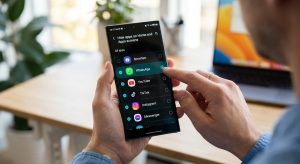
- Scroll down the list and select Hide apps on Home and Apps screens.
- You will be presented with an alphabetical list of every application installed on your device. Scroll through or use the search bar to find the apps you want to conceal.
- Tap on the app icons. They will move to the “Hidden apps” section at the top of the screen.
- Tap Done at the bottom of the screen to apply your changes.
Once completed, the selected apps will vanish. To access a hidden app, you must swipe down on your home screen to open the system search bar, type the exact name of the application, and launch it directly from the search results. If you ever want to unhide the app, simply return to the same settings menu and tap the minus icon next to the app in the hidden section.
Method 2: The Ultimate Vault – Samsung Secure Folder
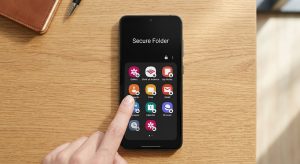
If simply hiding an app is not enough, you need to utilize Samsung Secure Folder. Backed by Samsung Knox—a defense-grade mobile security platform—Secure Folder creates an entirely separate, encrypted environment on your device. When you move an app into the Secure Folder, it operates independently from the version on your main phone. You can even have two different accounts for the same app (like WhatsApp or Instagram) running simultaneously.
Setting Up Secure Folder
Before you can move apps, you must activate and configure the Secure Folder environment:
- Open your device Settings and navigate to Security and privacy.
- Tap on More security settings, then select Secure Folder.
- You will be prompted to sign in with your Samsung Account.
- Choose your preferred lock type for the folder. You can use a PIN, password, or pattern. For maximum convenience, enable Fingerprints so you can unlock the vault biometrically.
- Wait a few moments while the system creates your encrypted space. Once finished, a Secure Folder shortcut will appear in your app drawer.
Adding Apps to Secure Folder
With the vault established, you can now populate it with your sensitive applications:
- Open the Secure Folder from your app drawer and authenticate using your fingerprint or PIN.
- Tap the + (Plus) icon located at the top of the screen.
- You can either select apps already installed on your device to copy into the folder, or you can tap “Download from Play Store” to install a fresh application directly into the encrypted environment.
- Select your desired apps and tap Add.
Any data, photos, or files generated by the app while inside the Secure Folder will remain trapped within that encrypted environment. They will not sync to your primary camera roll or documents folder.
Hiding the Secure Folder Itself
For absolute discretion, you can make the Secure Folder completely disappear from your app drawer, ensuring no one even knows you have a hidden vault.
- Open the Secure Folder and tap the three vertical dots in the top right corner.
- Select Settings.
- Toggle off the switch next to Add Secure Folder to Apps screen.
- When prompted, confirm that you want to hide the folder.
To access your Secure Folder after hiding it, you will need to pull down your quick settings notification shade from the top of the screen, find the Secure Folder toggle icon, and tap it to make the app visible again.
Method 3: Pinning Apps for Temporary Handoffs
Sometimes you do not need long-term security; you just need to hand your phone to a friend to make a call or let a child play a specific game without them snooping through your messages. For this scenario, Samsung offers a feature called App Pinning. When an app is pinned, the user is locked entirely into that single application. They cannot navigate to the home screen, open recent apps, or view notifications until they input your device password.
To enable App Pinning:
- Go to Settings > Security and privacy > More security settings.
- Scroll to the bottom and toggle on Pin app. Ensure the sub-setting “Ask for PIN before unpinning” is also activated.
- To use the feature, open the app you want to lock the user into.
- Swipe up and hold to open your Recent Apps screen (or tap the recents button if using navigation bar buttons).
- Tap the circular icon at the top of the app’s preview card and select Pin this app.
To unpin the app and regain normal use of your phone, swipe up from the bottom of the screen and hold (or press the back and recents buttons simultaneously) until the lock screen appears, requiring your fingerprint or PIN.
Why Native Solutions Beat Third-Party App Lockers
A quick search on the Google Play Store reveals thousands of “App Lock” and “Privacy Vault” applications. While tempting, these third-party solutions are fundamentally flawed compared to Samsung’s native tools.
Third-party lockers operate on top of your operating system, meaning they have to run continuously in the background to detect when you open a protected app. This constant monitoring causes noticeable battery drain and device slow-downs. Furthermore, many of these free applications are aggressively monetized, bombarding you with full-screen advertisements every time you try to access your own data. Most critically, because third-party apps are not integrated into the core system architecture, tech-savvy intruders can often bypass them simply by booting the phone into Safe Mode or forcefully stopping the app’s background process in settings. Samsung Knox and Secure Folder are baked directly into the motherboard’s architecture, making them virtually impenetrable to standard software bypass methods.
Securing your digital life on a Samsung Galaxy device does not require technical expertise or expensive third-party subscriptions. By strategically utilizing the Home Screen hiding features for visual decluttering, App Pinning for safe device sharing, and the Knox-powered Secure Folder for uncompromising encryption, you can maintain absolute control over who sees your personal data. Take a few minutes today to audit your installed applications and place your most sensitive digital assets behind these powerful built-in barricades.
Frequently Asked Questions
Does moving an app to the Secure Folder delete the original version?
No, moving an app from your main app drawer to the Secure Folder creates an independent, cloned copy of the application. If you only want the app to exist within the Secure Folder, you must manually uninstall the original version from your primary app drawer after the copy is complete.
Can I reset my Secure Folder password if I forget it?
Yes, but only if you have enabled the “Reset with Samsung account” option in the Secure Folder settings beforehand. If you forget your PIN and do not have this recovery option active, you will be forced to uninstall the Secure Folder entirely, which permanently deletes all encrypted data stored within it.
Do notifications from hidden apps still show up?
If you simply hide an app from the home screen using Method 1, you will still receive notifications normally. However, apps placed inside the Secure Folder have their notifications hidden by default to maintain privacy. You can change this behavior in the Secure Folder notification settings if you prefer to see alerts.
Is Samsung Secure Folder available on all Galaxy devices?
Secure Folder is available on the vast majority of modern Samsung Galaxy smartphones and tablets running Android 7.0 or higher. However, some budget models in the Galaxy M or Galaxy A series (specifically “Core” editions) may lack the hardware-level Knox integration required to support the feature.
Can someone see my Secure Folder files when connected to a computer?
No. When you connect your Samsung device to a PC via USB, the computer can only read the standard, unencrypted storage. Files, photos, and app data trapped inside the Secure Folder remain completely invisible to external file explorers unless the folder is actively unlocked on the device itself.
Sources & References
- Samsung Support Official Guidelines: Documentation on configuring Samsung Knox security infrastructure and deploying Secure Folder parameters.
- Google Android Enterprise Directory: Security protocols detailing the hardware-level encryption standards of modern Android operating systems.
- Cybersecurity Mobile Best Practices: Whitepapers on compartmentalization of financial data and mitigation of unauthorized physical access on personal devices.