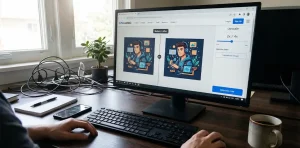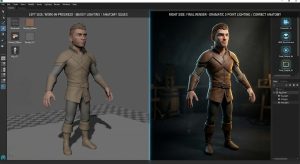
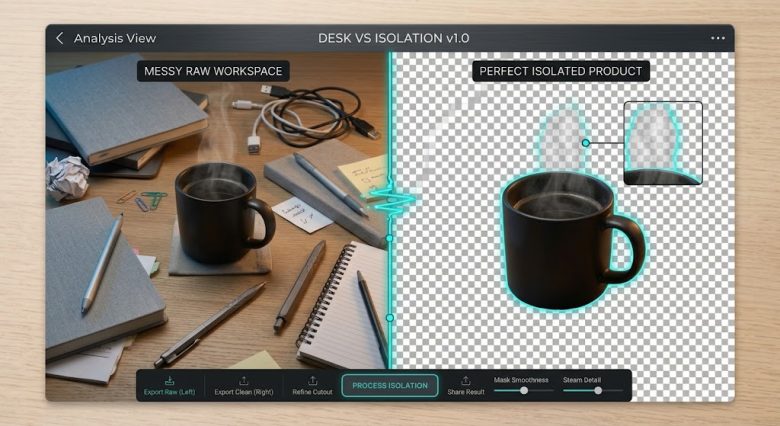
Spending hours meticulously clicking around the edges of a subject with the Photoshop Pen Tool is a thing of the past. Whether you are an e-commerce store owner listing hundreds of products, a graphic designer creating YouTube thumbnails, or a social media manager building marketing graphics, isolating subjects quickly is non-negotiable.
The market is flooded with automated background erasers, but they are not created equal. Many free tools leave jagged edges, accidentally delete parts of the subject’s face, or completely fail when dealing with complex textures like curly hair, animal fur, or transparent glass.
Finding an accurate, free AI tool that maintains crisp edges without degrading your original image quality is the real challenge. After extensive testing on complex photos—ranging from pets with stray hairs to products shot in low-light conditions—we have narrowed down the most accurate free AI background removal tools available right now.
Here is a deep dive into the software that actually delivers on the promise of instant, flawless cutouts.
Why Accuracy in Edge Detection Matters
Before jumping into the tools, it is crucial to understand what separates a premium AI eraser from a mediocre one. Basic background removers use simple color-contrast detection. If you have a subject wearing a black shirt against a black wall, a basic tool will erase half the shirt.
Advanced AI models, however, use semantic segmentation. The AI is trained on millions of images to actually “understand” what a human, a car, or a coffee mug looks like. This allows the software to differentiate between the subject and the background even when the colors blend together.
When evaluating these tools, the true test of accuracy comes down to three factors:
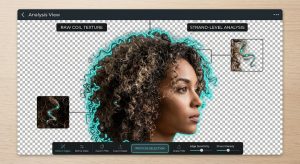
- Fine Details: Can the AI preserve individual strands of hair or animal fur?
- Semi-Transparency: How does it handle lace, bridal veils, or clear glass bottles?
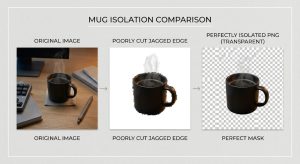
- Edge Crispness: Does the cutout have a harsh, pixelated halo, or is there a natural, soft transition?
1. Adobe Express Free Background Remover
Adobe has been the industry standard for photo editing for decades, and they have integrated their powerful Adobe Sensei AI into their free online Express suite.
How It Performs: The Adobe Express background remover is arguably the most accurate free tool on the market because it utilizes the same underlying technology as Photoshop’s “Remove Background” action. When tested on difficult subjects like a dog with fluffy fur standing against a similarly colored carpet, Adobe Express successfully separated the fur without leaving unnatural, choppy edges.
Resolution and Limitations: Unlike many free tools that drastically compress your final image, Adobe allows you to download a standard-quality image that is more than sufficient for web use, social media, and product listings. The only caveat is that you must create a free Adobe account to download your edited image.
Best For: Graphic designers and small business owners who need professional-grade edge detection without paying for a full Creative Cloud subscription.
2. remove.bg
If there is one tool that popularized one-click background removal, it is remove.bg. It remains one of the most widely used platforms globally, heavily favored for its sheer speed and API integrations.
How It Performs: remove.bg is highly optimized for human subjects. If you are trying to cut out a portrait, a headshot, or a person in motion, this AI rarely misses. It handles clothing wrinkles, loose hair, and skin tones with remarkable precision. However, it occasionally struggles with inanimate objects or abstract shapes that it cannot easily recognize as a “subject.”
Resolution and Limitations: The primary drawback of remove.bg is its free tier restriction. While the background removal process is 100% free, downloading the result in high resolution (HD) requires credits, which cost money. Free users are limited to standard-resolution downloads (typically around 612 × 408 pixels). This is perfectly fine for WhatsApp stickers, basic memes, or small UI elements, but inadequate for large print or high-end e-commerce.
Best For: Users who need lighting-fast cutouts of people for social media posts, thumbnails, or digital avatars where ultra-high resolution is not strictly required.

3. Photoroom
Photoroom started as a mobile app but has expanded into a robust web-based tool. It is specifically designed with product photographers, resellers (like eBay, Depop, or Poshmark sellers), and small businesses in mind.
How It Performs: Photoroom’s AI is aggressively tuned for product photography. It does an exceptional job of identifying the boundaries of shoes, electronics, apparel, and furniture. What makes Photoroom stand out is its workflow; once the background is removed, the tool immediately offers options to add realistic drop shadows, reflections, or completely new AI-generated backgrounds (like placing your product on a marble countertop).
Resolution and Limitations: The free web version provides highly accurate cutouts and allows standard downloads. However, if you use the free mobile app, it places a small Photoroom watermark in the corner of your image. This can usually be cropped out if there is enough space around the subject, but it is an extra step to consider.
Best For: E-commerce sellers, vintage clothing resellers, and digital marketers who need to turn amateur smartphone photos into studio-quality product listings.
4. Erase.bg
Erase.bg has gained significant traction as a powerful alternative to remove.bg, primarily because of its generous resolution offerings for free users.
How It Performs: Powered by advanced computer vision algorithms, Erase.bg supports a wide variety of image formats, including WebP, PNG, and JPEG. Its edge detection is slightly less aggressive than Adobe’s, meaning it tends to play it safe around difficult borders. This results in very clean, smooth edges, though it might occasionally leave a tiny fraction of the original background in highly complex crevices (like the space between a person’s arm and torso).
Resolution and Limitations: The standout feature here is that Erase.bg allows users to download images at up to 5000 x 5000 pixels for free without slapping a watermark on the output. This makes it an invaluable resource for users working with large DSLR photographs or high-res stock images.
Best For: Photographers and web developers who need to process high-resolution images for large website banners or print materials without paying a premium.
5. ClipDrop by Jasper (Formerly Stability AI)
ClipDrop is a suite of AI photo editing tools, and its background removal feature is powered by highly sophisticated neural networks.
How It Performs: Because the team behind ClipDrop specializes in generative AI, their background remover is incredibly smart at deciphering depth of field. If you upload a portrait with a heavily blurred background (bokeh), ClipDrop easily distinguishes between the soft edges of the subject and the blurred background. It is also one of the few free tools that handles transparent objects, like eyeglasses or plastic bottles, with a high degree of success.
Resolution and Limitations: ClipDrop offers a free tier that works smoothly, but during peak server hours, free users may experience slight processing delays or a queuing system. The free downloads are capped at a standard resolution, requiring a pro upgrade for full HD.
Best For: Users dealing with tricky lighting conditions, transparent objects, or photos with shallow depth of field.
How to Get the Best Results from AI Removers
Even the smartest AI can get confused if you feed it a terrible photo. To ensure you get the most accurate, clean edges every time—regardless of which free tool you use—follow these best practices:
- Ensure Proper Lighting: AI struggles when shadows merge the subject with the background. For example, if a person wearing dark blue jeans is standing against a black wall in a dimly lit room, the AI might cut off their legs. Always try to use well-lit photos.
- Maximize Contrast: The higher the color contrast between your subject and the background, the faster and cleaner the AI will work.
- Avoid Motion Blur: If the edges of your subject are blurred due to a moving camera, the AI will likely create a harsh, jagged cut because it cannot find a definitive pixel border.
- Pre-Crop When Necessary: If your subject only takes up 10% of the photo and the rest is a chaotic background, crop the image closer to the subject before uploading it. This forces the AI to focus exactly where it needs to.
Final Thoughts on Choosing Your Tool
Selecting the right background remover comes down to your specific workflow requirements. If you demand the highest possible edge accuracy and do not mind creating an account, Adobe Express is unparalleled. If you need to quickly cut out a face for a YouTube thumbnail and are in a rush, remove.bg is the fastest option. For e-commerce store owners looking to instantly drop products onto clean, white canvases with natural shadows, Photoroom is the clear winner. Meanwhile, Erase.bg takes the crown for those who refuse to compromise on high-resolution downloads.
By integrating these free AI tools into your daily workflow, you can reclaim hours of manual editing time and maintain a crisp, professional aesthetic across all your digital platforms.
Frequently Asked Questions
1. Are AI background removers actually 100% free?
Most AI background removers operate on a “freemium” model. The actual process of removing the background is free, but platforms like remove.bg restrict high-resolution downloads behind a paywall. Tools like Adobe Express offer high-quality downloads for free, provided you create a registered user account.
2. How does AI handle removing backgrounds from transparent objects like glass?
Transparent objects are notoriously difficult because the background visually passes through the subject. Advanced tools like ClipDrop and Adobe Express use complex neural networks to retain the glass’s reflection and opacity while removing the colors of the background behind it.
3. Can I use these free tools for commercial purposes?
In most cases, yes. The resulting transparent PNGs can be used for your e-commerce store, YouTube thumbnails, and marketing materials. However, you should always check the specific Terms of Service of the tool, as some free tiers restrict usage to personal projects only.
4. What is the best file format for images with removed backgrounds?
You must always save or download your file as a PNG or WebP. Unlike JPEG formats, which automatically fill empty spaces with a solid white block, PNG and WebP formats support alpha channels (transparency), keeping your background completely clear.
5. Why did the AI cut off part of my subject’s face or body?
This usually happens due to low contrast between the subject and the background (e.g., a white shirt against a white wall) or harsh shadows confusing the algorithm. To fix this, you can use the “manual restore/erase” brush that tools like Photoroom and remove.bg provide to manually paint back the missing parts.
Sources & Tools Mentioned
- Adobe Express:
[express.adobe.com/tools/remove-background](https://express.adobe.com/tools/remove-background) - remove.bg:
www.remove.bg - Photoroom:
[www.photoroom.com/tools/background-remover](https://www.photoroom.com/tools/background-remover) - Erase.bg:
www.erase.bg - ClipDrop:
clipdrop.co/remove-background