
Picture this: You are in the middle of a crucial Zoom meeting, or maybe you are finally sitting down to listen to your favorite podcast while working, and suddenly—silence. Your wireless headphones have disconnected. Or perhaps you are in the middle of a gaming session, and your Bluetooth mouse just stops tracking. You go into your Windows settings, turn Bluetooth off and on again, and it works… for about ten minutes before dropping out once more.
If your Windows 10 Bluetooth keeps disconnecting randomly, you are dealing with one of the most notoriously annoying bugs in the Microsoft ecosystem. The good news? Your headphones or mouse are probably not broken. In 99% of cases, this is a software issue, a power management conflict, or a driver glitch that can be entirely resolved without spending a single dime on new hardware.
In this comprehensive guide, we are going to break down exactly why Windows 10 struggles to maintain a stable Bluetooth connection, and more importantly, I will walk you through the permanent solutions to fix it. Grab a wired mouse for the next few minutes, and let’s get this sorted out.
The Root of the Problem: Why Does Windows 10 Drop Bluetooth?
Before we jump into the fixes, it helps to understand the “enemy.” Bluetooth technology relies on the 2.4 GHz radio frequency band to transmit data. It is a crowded space. Your Wi-Fi router, your microwave, and even certain USB cables emit interference in this exact same frequency.
However, external interference is rarely the main culprit for chronic, repetitive disconnections on Windows 10. The real issues usually stem from inside the operating system:
- Aggressive Power Management: Windows 10 is designed to save battery life, especially on laptops. If it thinks a component isn’t being actively used in a specific way, it will literally turn off the power to your Bluetooth adapter to save juice.
- Corrupted or Clashing Drivers: When Windows updates itself, it sometimes installs generic Bluetooth drivers that conflict with the specific hardware chip on your motherboard.
- The Bluetooth Support Service: This is the background engine that runs Bluetooth on your PC. If this service is set to “Manual” instead of “Automatic,” it can crash in the background, taking your connection down with it.
Now that we know what is causing the headache, let’s go through the step-by-step solutions to cure it. We will start with the most successful fix first.
Solution 1: Stop Windows from Turning Off Your Bluetooth (The Power Management Tweak)
As mentioned, Windows 10 has a terrible habit of putting your Bluetooth radio to sleep to conserve battery. This happens on laptops and, strangely enough, even on desktop computers plugged directly into the wall. Disabling this “feature” is usually the silver bullet for random disconnects.
Here is how to do it:
- Right-click on the Start button in the bottom left corner of your screen.
- Select Device Manager from the pop-up menu.
- In the Device Manager window, look for the category named Bluetooth and click the small arrow next to it to expand the list.
- You will see several items here. You are looking for your main Bluetooth adapter. It will usually be named something like Intel(R) Wireless Bluetooth(R), Realtek Bluetooth Adapter, or Generic Bluetooth Adapter. Do NOT click on your specific device names (like “AirPods” or “Logitech Mouse”).
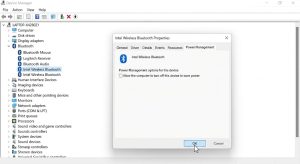
- Right-click on your main Bluetooth adapter and select Properties.
- In the new window, navigate to the Power Management tab.
- You will see a checkbox that says: “Allow the computer to turn off this device to save power.” Uncheck this box.
- Click OK and restart your computer.
Note: If you do not see a Power Management tab, don’t panic. Some modern standby devices hide this tab. Move on to Solution 2.
Solution 2: Automate the Bluetooth Support Service
Windows relies on a background application called the “Bluetooth Support Service” to discover and maintain connections with your devices. Sometimes, Windows sets this service to start manually. If the service stops or pauses, your devices will immediately disconnect. We need to force it to run automatically at all times.
- Press the Windows Key + R on your keyboard to open the Run dialog box.
- Type
services.mscand hit Enter. This opens the Windows Services console. - Click on any item in the list and press the letter ‘B’ on your keyboard to jump down to the B section.
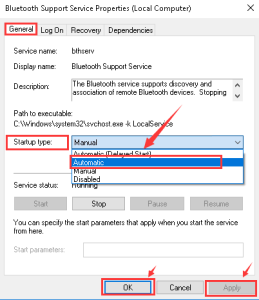
- Look for Bluetooth Support Service.
- Right-click it and select Properties.
- In the middle of the window, look for the Startup type dropdown menu. Click it and change it from Manual to Automatic.
- Look just below that at the Service status. If it says “Stopped,” click the Start button.
- Click Apply, then OK.
Solution 3: The Driver Rollback and Reinstall Technique
If tweaking the power settings and services didn’t resolve the drops, you are likely dealing with a corrupted driver. A driver is essentially the translator that allows Windows 10 to speak to your Bluetooth hardware. A bad Windows update can easily break this translator.
Step A: Try a Rollback First Sometimes, the older driver was actually better.
- Open Device Manager again (Right-click Start > Device Manager).
- Expand the Bluetooth section, right-click your main adapter (e.g., Intel or Realtek), and select Properties.
- Go to the Driver tab.
- If the Roll Back Driver button is clickable (not grayed out), click it. Follow the prompts to revert to the previous version and restart your PC.
Step B: The Clean Reinstall If rolling back isn’t an option, we need to completely wipe the current driver and let Windows fetch a fresh one.
- In the same Device Manager window, right-click your main Bluetooth adapter and choose Uninstall device.
- A warning box will appear. If there is a checkbox that says “Delete the driver software for this device,” check it. Then click Uninstall. (Don’t worry, your PC won’t break).
- Once it disappears from the list, click on Action at the top menu bar of Device Manager, and select Scan for hardware changes.
- Windows will detect that the Bluetooth chip is missing its software and will automatically download and install a fresh, clean driver. Restart your PC to finalize this.
Solution 4: Beware of USB 3.0 Interference
This is a hardware quirk that very few people know about, but it causes massive headaches for desktop PC users.
USB 3.0 ports (the ones with the blue plastic inside) emit broadband noise in the 2.4 GHz to 2.5 GHz range. If you have a USB Bluetooth dongle plugged directly next to a USB 3.0 port that is actively being used (like transferring files to an external hard drive), the “noise” from the USB 3.0 port can completely jam your Bluetooth signal, causing instant disconnects.
The Fix: If you use a USB Bluetooth dongle, plug it into a USB 2.0 port (the black ones) on the front of your PC case or use a USB extension cable to move the dongle as far away from your USB 3.0 ports and Wi-Fi antennas as possible. Physical line-of-sight between your PC and your headphones/mouse dramatically improves stability.
When All Else Fails: Upgrading Your Hardware
If you have tried every software fix under the sun, updated your BIOS, and your Bluetooth is still dropping every five minutes, you might be dealing with a failing hardware chip on your motherboard. Hardware degrades over time, especially in older laptops that have been subjected to heat.
Instead of paying for an expensive motherboard repair, you can bypass the internal Bluetooth entirely. You can purchase a high-quality USB Bluetooth 5.0 (or 5.3) adapter for under $15 online. Simply plug it in, disable your internal Bluetooth via Device Manager, and let the new USB dongle handle all your wireless connections. It is a cheap, instant, and permanent fix for failing hardware.
Conclusion
Dealing with a Windows 10 Bluetooth connection that keeps disconnecting is an incredibly frustrating experience that disrupts your workflow and entertainment. However, by taking a systematic approach—preventing Windows from turning off the device to save power, automating the Bluetooth Support Service, and ensuring your drivers are clean—you can almost always force your PC to maintain a stable, uninterrupted connection.
Frequently Asked Questions
Why does my Bluetooth mouse lag before disconnecting?
Lag or stuttering just before a total disconnection is a classic sign of signal interference or driver corruption. The Bluetooth radio is struggling to decipher the data packets it is receiving. Removing physical obstacles between the mouse and the PC, or updating the driver as outlined in Solution 3, usually resolves the stuttering.
Does leaving Bluetooth on drain my PC battery significantly?
In the era of modern Bluetooth Low Energy (BLE), the battery drain is minimal. While leaving it on will consume a tiny fraction of your battery life, it is generally not enough to drastically reduce your laptop’s screen-on time. It is perfectly safe and efficient to leave it on all the time.
Can a Windows Update break my Bluetooth?
Absolutely. Microsoft frequently bundles hardware driver updates with general Windows updates. Occasionally, they will push a generic driver that doesn’t play nicely with your specific motherboard’s Bluetooth chip. This is why the “Roll Back Driver” feature exists in Windows.
My Device Manager doesn’t have a Power Management tab for Bluetooth. What do I do?
Microsoft removed this tab for devices that support “Modern Standby” in recent versions of Windows 10. If you don’t see the Power Management tab, you can skip Solution 1. Rely entirely on Solution 2 (Services) and Solution 3 (Drivers), as these are highly effective alternatives.
Sources & References
- Microsoft Support Community: Documentation on Windows 10 hardware and device troubleshooting, specifically regarding Bluetooth Support Service behaviors.
- Intel Developer Zone: Whitepapers on Radio Frequency (RF) interference, detailing the specific impact of USB 3.0 data transfers on 2.4 GHz wireless devices.
- Windows Sysinternals: Technical documentation regarding Windows Advanced Power Management (APM) and its effects on peripheral connectivity.