Stretching a small image in a standard photo editor almost always ends in disappointment. If you take a 500-pixel image downloaded from an old webpage or forwarded through WhatsApp and drag the corners to make it larger, basic software simply duplicates the existing pixels. That traditional method softens every sharp boundary and leaves fine textures—like hair, fabric, or text—looking smudged and blocky.
Modern browser-based AI upscalers handle this differently. Instead of blindly stretching pixels, these web tools examine the surrounding shapes, edges, and color gradients to predict what the missing detail should look like, while simultaneously stripping away blocky JPEG compression artifacts. Within a few seconds, you can turn a cramped, low-resolution image into a crisp 2K or 4K file without installing heavy desktop software or paying for a monthly subscription.
Choosing the Right Free Web Tool for Your Image Type
Not all upscalers use the same underlying model. A web tool tuned to restore human portraits will often ruin a 3D cartoon render or a website screenshot by trying to add skin texture where none should exist. Before uploading your file, match your image to the right free browser tool:
| Image Type | Recommended Free Web Tool | Best Multiplier | Why It Works Best |
| Everyday Photos & Portraits | Pixelcut Web Upscaler | 2x | Preserves natural lighting and skin textures without making faces look like plastic. |
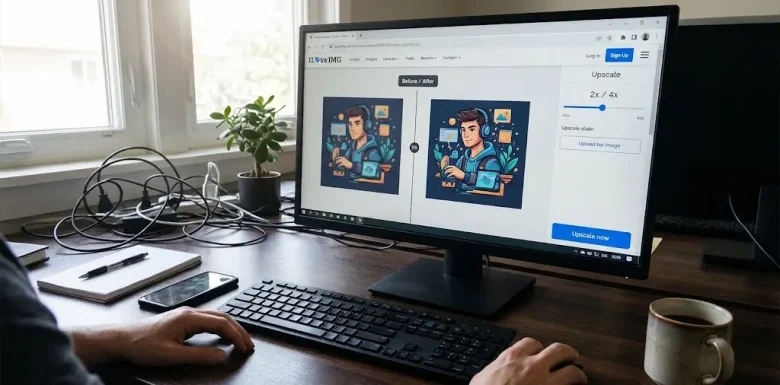
| Web Graphics & Product Shots | iLoveIMG Upscale | 2x or 4x | Fast browser processing with clean edge sharpening and zero account sign-up required. |
| Digital Art, 3D Renders & Illustrations | BigJPG or Waifu2x | 4x | Specifically trained on clean lines, flat shading, and rendered gradients; prevents muddy color bleeding. |
| Old Compressed JPEGs | Media.io / VanceAI Free Trial | 2x | Includes a dedicated de-blurring pass that strips away heavy compression blocks before enlarging. |
Step-by-Step: Upscaling an Image Using iLoveIMG and Pixelcut
For most everyday photos, blog graphics, and thumbnails, iLoveIMG and Pixelcut are the most reliable browser options because they do not watermark your downloads or force you to buy credits just to test a file.
Step 1: Check Your Original Image Dimensions First
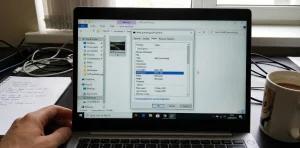
Before uploading an image to any web tool, check its current resolution on your computer. Right-click the image file, select Properties (on Windows) or Get Info (on Mac), and open the Details tab.
Look at the Dimensions line. Free web upscalers work best on images that start between 300 pixels and 1,000 pixels on their longest side. If your image is already 1920 x 1080 pixels and looks blurry, the issue is likely camera motion blur rather than low resolution. Feeding an already huge 3,000-pixel photo into a free browser tool will usually cause the upload to fail or crash your browser tab due to memory limits.
Step 2: Upload the File to the Web Upscaler
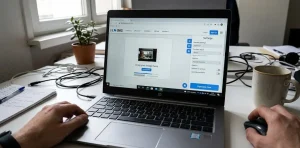
Open your browser and head to the iLoveIMG Upscale Image tool (or Pixelcut’s Image Upscaler). Click Select Images to choose the file from your computer, or drag it directly into the browser window.
Once the file loads, give the tool a few seconds to generate the initial preview. Most browser utilities automatically run a 2x pass as soon as the upload finishes.
Step 3: Compare the 2x and 4x Multiplier Settings
On the right side of the screen, you will see an option to switch the size multiplier between 2x and 4x.
- Start with 2x: If your original image is 800 x 600 pixels, the 2x setting doubles both the width and height to 1600 x 1200 pixels (quadrupling the total pixel count). For website featured images, YouTube thumbnails, and presentations, 2x almost always looks the most natural.
- Test 4x cautiously: Switching to 4x takes that same 800 x 600 image up to 3200 x 2400 pixels. While edges will look razor-sharp, 4x scaling forces the software to invent a lot of missing information. Use the interactive before-and-after slider on the screen to zoom in on fine details like eyes, text, or background foliage. If the 4x version starts looking like an oil painting, switch back to 2x.
Step 4: Download and Verify the Output Format
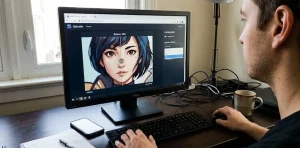
Once you are satisfied with the preview, click the Upscale or Download button.
Pay attention to the file format of the downloaded image. Many free web tools convert your uploaded JPEG into a PNG or WebP file to preserve the newly sharpened edges without re-introducing compression artifacts. If a 120 KB image comes back as a 4 MB PNG file, that is normal—the file now contains four to sixteen times more pixel data than before.
Upscaling Digital Art and 3D Renders Without Losing Texture
If you work with digital illustrations, vector icons, or 3D character renders, standard photo upscalers often make a mess of smooth gradients. Because photo upscalers expect camera grain, they sometimes add strange speckles to smooth cartoon shading or warp thin black outlines.
When working with non-photographic art, use a tool like BigJPG or Waifu2x instead, and adjust two manual settings:
- Select “Artwork” Instead of “Photo”: After selecting your file, set the Image Type button to Artwork. This tells the tool to prioritize smooth color transitions and crisp line weights.
- Adjust the Noise Reduction Level: You will see four options: None, Low, Medium, and High.
- If your image is a clean PNG render that just needs to be larger, choose None or Low. Choosing High on a clean render will erase deliberate details like clothing stitching, eyebrows, or subtle shadows.
- If your image is an old JPEG saved multiple times from social media, set Noise Reduction to Medium or High to wipe out the blocky static around the edges before it scales up.
Common Mistakes That Ruin Upscaled Images
Even the best web tools have limits. If your output looks strange or artificial, you are likely running into one of these four issues:
- Upscaling an Image Twice in a Row: Taking a tiny 300-pixel photo, upscaling it by 4x, downloading it, and uploading that new file back into the tool for another 4x boost amplifies every flaw from the first pass. It creates harsh glowing halos around edges and turns backgrounds into abstract swirls. Always do a single pass from the cleanest original file you have.
- Expecting Tiny Background Text to Become Readable: If a low-resolution photo contains a street sign or computer screen in the background where the letters are only three pixels tall, an upscaler cannot read what was originally written. Instead, it guesses at the shapes, turning blurry letters into nonsensical symbols.
- Ignoring Aspect Ratio Cropping: Some free browser tools automatically crop odd-sized images to fit standard square or 16:9 templates unless you turn off their “auto-frame” setting. Compare your downloaded file against the edges of your original to make sure nothing important was trimmed off the sides.
- Uploading Screenshots Saved as Low-Quality JPEGs: When capturing screenshots for tutorials or presentations, never save the original capture as a compressed JPEG and expect an upscaler to clean up the fuzzy text later. Capture screenshots directly as PNGs at 100% display scaling so the text edges remain crisp from the start.
Frequently Asked Questions
Can free AI web upscalers fix a photo that is out of focus?
They can sharpen soft edges slightly, but there is a big difference between a low-resolution photo and an out-of-focus photo. If the camera lens missed focus when the picture was taken, or if the subject moved rapidly causing motion blur, a basic upscaler will simply give you a larger version of a blurry subject. For motion blur, you need a dedicated de-blurring or face-restoration filter rather than a resolution multiplier.
Is it safe to upload personal photos to free browser upscalers?
Most reputable web tools like iLoveIMG and Pixelcut automatically delete uploaded files from their servers within two to twenty-four hours after processing. However, you should never upload sensitive documents—such as photos of ID cards, financial statements, or private contracts—to any cloud-based tool. If you need to upscale sensitive files, use an offline desktop program like Upscayl that runs entirely on your own graphics card without an internet connection.
Why do human faces sometimes look weird after a 4x upscale?
General image upscalers treat every pixel the same way, whether it belongs to a coffee mug or a human eye. At 4x magnification, the tool can over-sharpen eyelashes, smooth out skin pores too aggressively, or slightly shift the symmetry of pupils. When upscaling portraits or group photos, stick to the 2x setting, which preserves the natural facial features without inventing artificial textures.
Why did my browser freeze when I clicked the download button?
Many modern free web tools process parts of the image directly inside your browser using your computer’s memory (WebGL) to save on server costs. If you have twenty browser tabs open while trying to render a 4x high-resolution PNG, your browser may run out of available RAM. Close unused tabs or try running the tool in an Incognito window with heavier browser extensions temporarily disabled.