The excitement of unboxing a brand-new smartphone is almost universally followed by a moment of digital dread: migrating your data. While transferring contacts and redownloading applications is straightforward, moving your complete WhatsApp chat history often feels like navigating a minefield. Your WhatsApp account holds a massive repository of your digital life, including irreplaceable voice notes from family members, high-resolution vacation photos, critical work documents, and years of daily conversations. Losing this archive during a device upgrade is not an option.
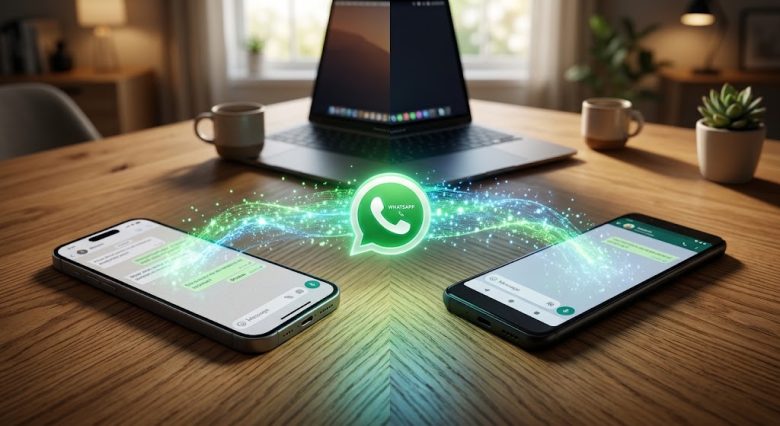
Historically, WhatsApp restricted users within their respective ecosystems, meaning migrating from an Android device to an iPhone—or vice versa—required unreliable third-party software that often compromised data security. Fortunately, the landscape has completely shifted. Official, secure, and native migration tools are now built directly into the iOS and Android operating systems, allowing you to transfer your entire encrypted chat history without losing a single message.
This comprehensive technical guide will walk you through the exact steps required to transfer your WhatsApp data across any device combination, ensuring a flawless and secure transition to your new hardware.
Essential Preparation Steps Before Migration
Attempting a data transfer without properly preparing both devices is the leading cause of corrupted backups and failed migrations. Before initiating any transfer process, you must complete the following baseline checks.
First, verify that you have absolute access to the phone number currently registered to your WhatsApp account. The migration process relies on an SMS or call-based OTP (One-Time Password) to authenticate your identity on the new device. If you are changing your phone number along with your device, you must use the “Change Number” feature within WhatsApp on your old phone before attempting to migrate your chat history.
Second, ensure both your old and new smartphones are fully charged or plugged into a stable power source. Large data transfers involving gigabytes of media can take upwards of an hour, and a dead battery mid-transfer will irreparably corrupt the migration file. Finally, connect both devices to the same high-speed, stable Wi-Fi network to prevent cellular data drops from interrupting the cloud sync.
Android to Android: The Google Drive Method
If you are upgrading from one Android smartphone to another, the migration process is handled entirely through Google Drive. This ecosystem relies on a seamless cloud handshake between your Google account and WhatsApp.
Step-by-Step Execution:
- Open WhatsApp on your old Android device, tap the three vertical dots in the top right corner, and select Settings.
- Navigate to Chats > Chat backup.
- Under the Google Drive settings, ensure a Google account is selected. Tap the Back up button to force an immediate, up-to-the-minute sync of your messages and media to the cloud. Wait until the progress bar reaches 100%.
- Power on your new Android device and ensure you sign in with the exact same Google account used for the backup.
- Install WhatsApp from the Google Play Store and open it.
- Verify your phone number.
- Upon verification, a prompt will appear stating a backup has been found on Google Drive. Tap Restore immediately. (Do not skip this step, as you cannot restore a backup later without completely reinstalling the application).
- Once the text messages are downloaded, you can begin using the app while your photos and videos silently restore in the background.
iPhone to iPhone: The iCloud Ecosystem
Apple’s closed ecosystem makes transferring data between two iOS devices incredibly fluid, utilizing iCloud to securely harbor your end-to-end encrypted chat logs.
Step-by-Step Execution:
- On your old iPhone, open WhatsApp and navigate to Settings > Chats > Chat Backup.
- Tap Back Up Now to push your latest messages to iCloud. Ensure the toggle for “Include Videos” is switched on if you wish to retain large media files.
- On your new iPhone, complete the initial Apple setup process and sign in using your existing Apple ID. Make sure iCloud Drive is toggled on in your system settings.
- Download WhatsApp from the App Store and launch the application.
- Verify your phone number through the standard SMS prompt.
- The app will automatically detect your iCloud backup. Tap Restore Chat History. Leave the app open and the screen on until the process completely finishes.
Crossing Platforms: Android to iPhone
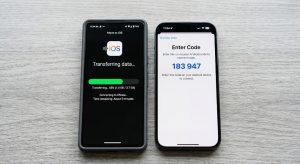
Moving from Android to iOS used to be a notorious pain point for smartphone users, but Apple and WhatsApp collaborated to build a secure bridge using Apple’s official “Move to iOS” Android application.
Crucial Prerequisite: Your new iPhone must be in a factory-reset state (on the initial “Hello” setup screen). If you have already set up your iPhone, you must wipe it completely to utilize this method.
Step-by-Step Execution:
- Download the Move to iOS app from the Google Play Store onto your old Android device.
- Begin the setup process on your new iPhone. When you reach the “Apps & Data” screen, select Move Data from Android.
- A distinct six-digit code will appear on your iPhone screen. Open the Move to iOS app on your Android device and enter this code to establish a secure, peer-to-peer Wi-Fi connection between the two phones.
- On the “Transfer Data” screen on your Android, scroll down and select WhatsApp.
- A WhatsApp screen will launch on your Android device. Tap Start to encrypt and package your data for export. Once packaged, you will be returned to the Move to iOS app.
- Tap Continue to physically transfer the data payload to the iPhone.
- Once the transfer completes, finish setting up the iPhone. Download WhatsApp from the App Store, log in with your phone number, and tap Start when prompted to decrypt the imported Android data.
Crossing Platforms: iPhone to Android
Migrating away from the Apple ecosystem to an Android device (like a Samsung Galaxy or Google Pixel) relies on a physical cable connection rather than a cloud transfer, ensuring immense data payloads move rapidly and securely.
Step-by-Step Execution:
- Acquire a Lightning-to-USB-C cable (or a USB-C to USB-C cable if migrating from an iPhone 15 or newer).
- Power on your new Android device and begin the initial setup. When prompted to copy apps and data, choose to do so using a cable.
- Connect the two devices physically. A prompt will appear on your iPhone asking if you “Trust This Computer.” Tap Trust and enter your passcode.
- On the Android setup screen, a list of transferable data will appear. Ensure WhatsApp is selected.
- A QR code will generate on the Android screen. Open the camera on your iPhone, scan the code, and tap the prompt to open WhatsApp on your iOS device.
- Tap Start to package the data. The transfer will push through the cable directly to your new Android device’s internal storage.
- Upon finishing the setup, open WhatsApp on Android, verify your number, and allow the app to restore the pre-loaded data.
Securing Your Archives: End-to-End Encrypted Backups
Regardless of which platform you use, standard cloud backups on Google Drive and iCloud are not automatically end-to-end encrypted by default. This means that if a malicious actor compromised your cloud account, they could theoretically access your chat logs.
To achieve total privacy, you must manually enable End-to-End Encrypted Backups. By doing so, you lock your cloud backup behind a custom 64-digit encryption key or a personalized password. Neither Google, Apple, nor WhatsApp can access your data without this exact key.
To enable this, go to Settings > Chats > Chat Backup > End-to-end Encrypted Backup and follow the prompts to create your key. Write this password down and store it in a physical safe or a secure password manager. If you lose this key, you will permanently lose access to your backup—there is absolutely no reset or recovery option available.
Troubleshooting Common Migration Errors
Even with official tools, large file transfers occasionally hit roadblocks. If your migration freezes or fails, check for these common culprits:
- Stuck at 99% Restoration: This usually indicates a corrupted media file or a lack of internal storage space on the new device. Ensure your new phone has at least 5GB of free space beyond the size of your backup.
- Backup Not Found: Double-check that you are signed into the exact same Google Account or Apple ID used to create the backup. Furthermore, confirm that the phone number you are verifying is identical to the one on the old device.
- Wi-Fi Disconnects: During a Move to iOS transfer, your Android phone may attempt to drop the peer-to-peer connection because it lacks internet access. Go into your Android Wi-Fi settings and turn off “Smart Network Switch” or “Auto-switch to mobile data” before starting the transfer.
Navigating a smartphone upgrade does not mean sacrificing your digital history. By utilizing the native tools embedded directly into iOS and Android, locking down your data with end-to-end encryption, and ensuring a stable environment before beginning the process, you can move gigabytes of cherished memories and critical communications seamlessly across any platform boundary.
Frequently Asked Questions
Q1: Will I lose my WhatsApp groups if I change my phone?
No. Your group memberships are tied directly to your registered phone number on WhatsApp’s servers, not your local device backup. As soon as you verify your phone number on the new device, you will instantly reappear in all your existing groups, even if your local chat history backup fails to restore.
Q2: Can I merge two different WhatsApp backups together?
No, WhatsApp does not support merging chat histories. When you restore a backup onto a new device, it completely overwrites any existing data on that device. You must choose a single backup file as your primary database.
Q3: How long does the WhatsApp migration process take?
The timeframe depends entirely on the size of your media library and your network speed. A text-only backup of 500MB might take two minutes, whereas a 25GB backup containing thousands of high-definition videos could take over an hour to package, transfer, and decrypt.
Q4: Can I transfer WhatsApp Business to a standard WhatsApp account?
Yes. You can back up a WhatsApp Business account and restore that exact backup into the standard WhatsApp consumer application on a new phone. The chat history will carry over seamlessly, though business-specific features (like catalogs and quick replies) will be disabled.
Q5: Is it possible to transfer chats via Bluetooth?
No. Bluetooth does not possess the bandwidth capabilities required to transfer massive database files reliably without extreme corruption risks. Official transfers must occur via local Wi-Fi direct connections, physical cables, or cloud servers.
Sources & References
- WhatsApp Official Help Center: Technical documentation regarding cross-platform chat history migration, end-to-end encrypted backup protocols, and device verification constraints.
- Apple Support Documentation: Guidelines for utilizing the “Move to iOS” application and establishing secure peer-to-peer Wi-Fi handshakes for Android data extraction.
- Google Android Help: Framework instructions for Google Drive cloud synchronization, backup restoration pathways, and Smart Switch cable transfer utilities.