
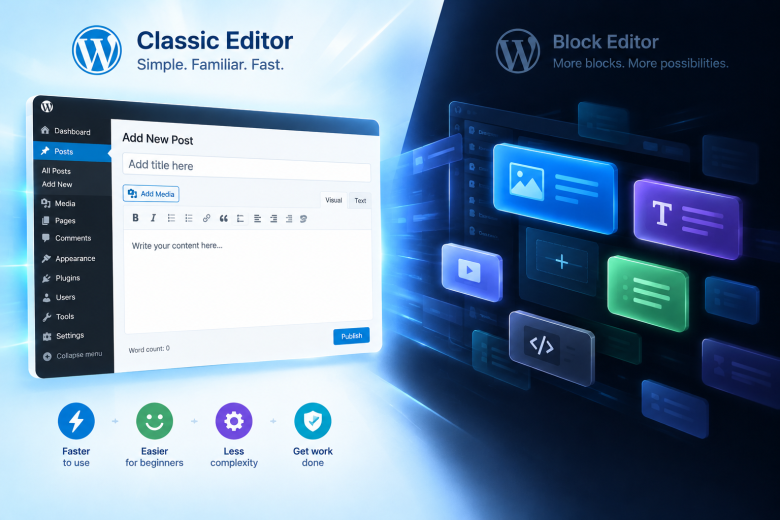
When WordPress introduced the Gutenberg Block Editor in version 5.0, it fundamentally changed how websites were built on the platform. The goal was to provide a visual, page-builder-like experience directly within the core software. While this shift empowered users to create complex, multi-column layouts without third-party page builders, it also introduced significant friction for users whose primary focus is publishing text-heavy content.
For content creators, technical writers, and niche blog operators, the writing experience is paramount. When your goal is to draft a 1,500-word article, manage custom HTML, or drop in simple shortcodes, the block-by-block approach can feel intrusive. Every paragraph, image, and heading becomes an isolated container with its own set of menus and settings.
Switching back to the Classic Editor restores the familiar, unified word-processor interface. It strips away the visual clutter, allows for faster typing, and provides direct, unhindered access to the HTML text tab. This guide provides a complete walkthrough on how to safely revert your WordPress installation to the Classic Editor, ensuring maximum compatibility with your existing plugins, custom code snippets, and daily publishing workflow.
Why the Classic Editor Remains a Staple for Publishers
Understanding why millions of active websites still rely on the Classic Editor helps clarify when it is the appropriate tool for a project. The decision usually comes down to workflow speed, code cleanliness, and plugin compatibility.
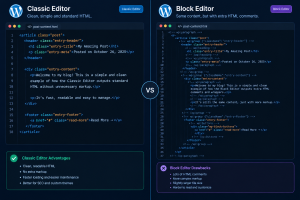
First, the Classic Editor outputs incredibly clean, standard HTML. When you type in the classic interface, WordPress wraps your text in standard <p> and <h2> tags. In contrast, the Block Editor injects proprietary HTML comments (like <!-- wp:paragraph -->) to track block boundaries in the database. For developers who prioritize raw, lightweight database entries or need to export their content easily, the classic output is significantly easier to manage.
Second, the classic interface handles shortcodes and custom scripts much more intuitively. If you are embedding custom interactive web utilities—such as plant light checkers, budgeting calculators, or storage capacity planners—managing these via simple shortcodes in a unified text field is often faster than navigating dedicated blocks. Form builders like WPForms integrate flawlessly into the Classic Editor using their standard shortcode embeds [wpforms id="xx"], allowing you to place lead capture tools precisely where you want them without fighting block alignment issues.
Method 1: The Official Classic Editor Plugin
The safest and most straightforward way to restore the legacy interface is by using the official Classic Editor plugin, maintained by the core WordPress contributors. This plugin is guaranteed to be fully compatible with current WordPress releases and is officially supported for the foreseeable future.
Step-by-Step Installation
- Log into your WordPress administrative dashboard.
- On the left-hand sidebar, navigate to Plugins > Add New.
- In the search bar on the right side of the screen, type “Classic Editor.”
- The plugin, authored by “WordPress Contributors,” should appear as the first result. Click Install Now.
- Once the installation is complete, click Activate.
Configuring the Editor Settings
The true power of this plugin lies in its flexibility. You don’t have to force every user on your site to use the Classic Editor; you can configure it to allow a hybrid approach.
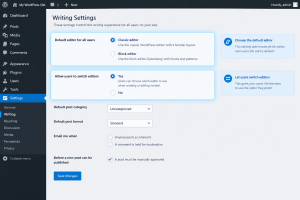
Navigate to Settings > Writing in your dashboard. You will find two new crucial settings:
- Default editor for all users: You can set this to either “Classic editor” or “Block editor.” Setting it to Classic will immediately replace Gutenberg on all new posts and pages.
- Allow users to switch editors: If you select “Yes,” WordPress will add a toggle link on the Posts and Pages screens. This allows an author to edit a heavily designed landing page in Gutenberg, and then click “Switch to Classic Editor” when they want to write a standard blog post.
This hybrid setup is highly recommended if you manage a multi-author site or if you rely on the block editor for complex homepage layouts but prefer the classic interface for standard editorial content.
Method 2: Disabling Gutenberg via Custom PHP (No Plugin Required)
If you are minimizing the number of active plugins on your server to squeeze out every millisecond of page load speed, you can disable the Block Editor entirely using a simple PHP filter.
This method is ideal for site administrators who already utilize a code snippet manager, like WPCode, to handle site-specific customizations without altering the core functions.php file of their theme.
To disable the Block Editor globally across your entire site, you need to add a single line of PHP code:
add_filter('use_block_editor_for_post', '__return_false', 10);
How to Implement the Code Safely
- If you are using WPCode (or a similar snippet manager), navigate to Code Snippets > Add Snippet.
- Select Add Your Custom Code (New Snippet).
- Set the Code Type to PHP Snippet.
- Paste the filter code provided above into the code box.
- Give the snippet a recognizable title (e.g., “Disable Block Editor”).
- Set the toggle to Active and click Save Snippet.
The moment this code executes, the Block Editor is completely removed from the post editing screen, and the Classic Editor is restored.
If you want more granular control—for example, disabling the Block Editor for regular blog posts but keeping it active for a custom post type like “Portfolios”—you can expand the PHP function:
add_filter( 'use_block_editor_for_post', 'disable_gutenberg_for_posts', 10, 2 );
function disable_gutenberg_for_posts( $use_block_editor, $post_type ) {
    if ( 'post' === $post_type ) {
        return false;
    }
    return $use_block_editor;
}
This conditional logic ensures that your daily writing remains in the Classic Editor, while specialized post types that require visual layout tools retain access to Gutenberg.
Managing Widgets in the Classic Interface
It is important to note that WordPress did not just change the post editor; version 5.8 also replaced the classic widget management screen (Appearance > Widgets) with a block-based widget editor.
If you are reverting your post editor because you prefer the traditional interface, you will likely find the block-based widget screen equally frustrating. The block widget screen can sometimes conflict with older themes or specific sidebar configurations, making it difficult to place standard HTML or ad network codes.
To fully restore the classic WordPress experience, you should also install the Classic Widgets plugin.
Just like the Classic Editor plugin, Classic Widgets is an official tool maintained by the WordPress team. Activating it instantly restores the old drag-and-drop widget screen, allowing you to easily manage text widgets, custom HTML for Google AdSense units, and navigation menus without dealing with widget blocks.
Handling Legacy Content and Migration
A common concern when switching between editors is what happens to existing content. If you have already published articles using the Gutenberg Block Editor and you activate the Classic Editor, WordPress handles the transition gracefully. When you open a block-built post in the Classic Editor, you will see the standard HTML output of those blocks in the text tab.
However, if you heavily utilized complex Gutenberg blocks (like galleries, multi-column layouts, or custom third-party block plugins), editing them in the Classic Editor’s visual tab might look slightly broken, as the visual editor cannot render the complex CSS of those blocks.
For the best experience, use the “Allow users to switch editors” setting mentioned in Method 1. This allows you to leave your old block-based posts in Gutenberg format for safe editing, while strictly using the Classic Editor for all newly generated content.
Frequently Asked Questions
Will the Classic Editor plugin be discontinued?
The official Classic Editor plugin is fully supported and maintained by the WordPress core team. They have publicly committed to maintaining the plugin for as long as it is necessary, and currently, there is no official sunset date. It remains one of the most downloaded plugins in the repository.
Does using the Classic Editor improve website speed?
On the frontend (what your visitors see), the difference is negligible. However, on the backend (the admin dashboard), the Classic Editor loads significantly faster than Gutenberg. It requires less JavaScript and consumes fewer browser resources, which is especially noticeable if you are working on a lower-end laptop or a slow internet connection.
Can I use the Classic Editor for Pages and the Block Editor for Posts?
Yes, but it requires a custom PHP snippet rather than the basic plugin settings. You can use conditional logic in your functions.php or WPCode snippet to return false for the use_block_editor_for_post filter only when the $post_type equals ‘page’.
Will I lose my content if I deactivate the Classic Editor plugin later?
No. Your content is safely stored in the WordPress database as standard HTML text. If you ever deactivate the Classic Editor and return to Gutenberg, WordPress will simply place your existing text into a single “Classic Block” within the new editor, preserving all your formatting.
Sources and References
- WordPress Core Trac: Documentation regarding the
use_block_editor_for_postfilter and its implementation in core updates. - Make WordPress Core Blog: Official announcements and support timelines regarding the maintenance of the Classic Editor and Classic Widgets plugins.
- WordPress Developer Resources: Technical guidelines on post types, database storage formats, and the parsing of HTML comments used by the Gutenberg architecture.