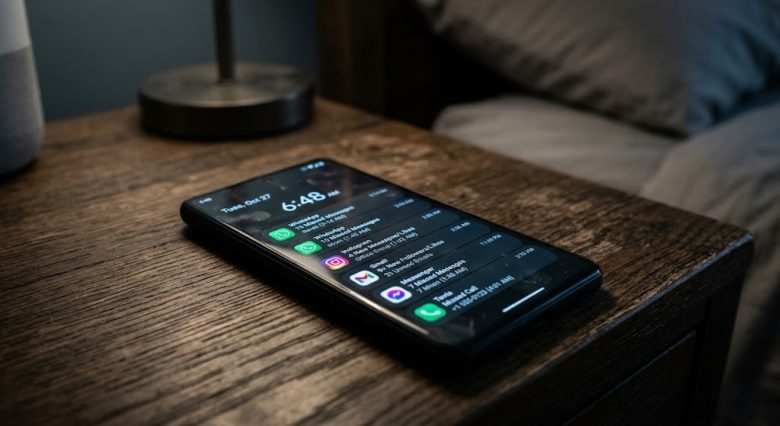
You are expecting a highly time-sensitive email from a client, or perhaps waiting for a crucial text message regarding a family emergency. Hours go by with complete silence. Eventually, you pick up your Android smartphone, unlock the screen, and instantly, a flood of notifications cascades down your display. The email arrived three hours ago. The text message is from this morning. If your phone only decides to deliver push notifications the exact second you wake up the screen, you are dealing with one of the most notoriously persistent bugs in the mobile ecosystem.
Missing real-time alerts completely defeats the purpose of owning a connected smartphone. Whether you rely on your device for day trading, freelance client communication, or smart home security alerts, delayed notifications can have genuine real-world consequences. It is easy to blame the specific application—assuming WhatsApp, Gmail, or your banking app is simply glitching—but the reality is far more systemic.
The root cause of delayed notifications almost never lies within the individual apps themselves. Instead, it is a direct result of aggressive system-level resource management. Android operating systems are designed to aggressively stretch battery life by forcing background processes into a deep sleep. While this saves power, it essentially strangles the data pathways required to fetch incoming alerts. Fortunately, you do not have to accept this compromise. By systematically disabling these hidden power-saving barricades, you can force your Android device to prioritize real-time data delivery over minor battery conservation.
The Root Cause: Understanding Android Doze and OEM Optimizers
To fix the problem permanently, you must first understand what is happening behind the glass. Starting with Android 6.0, Google introduced a core system feature called “Doze.” When your phone is unplugged, stationary, and the screen is off, Doze steps in and restricts apps from accessing the network or utilizing the CPU in the background. It groups network access into brief “maintenance windows,” which is why you suddenly get a burst of ten notifications all at once instead of receiving them sequentially.
While native Android Doze is manageable, third-party smartphone manufacturers (OEMs) like Samsung, Xiaomi, OnePlus, and Oppo take this concept to extreme levels. In an arms race to boast the longest battery life on their spec sheets, these manufacturers implement hyper-aggressive background task killers. These customized software overlays actively hunt down applications running in the background and terminate their connection to the internet to prevent battery drain. If the system forcefully puts your messaging app to sleep, it physically cannot receive the server ping that triggers a notification until you manually wake the app up again.
To restore instantaneous push notifications, we must tell the operating system to exempt your critical applications from these aggressive hibernation cycles.
Step 1: Exempt Critical Apps from Battery Optimization
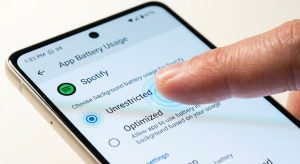
The single most effective fix for delayed alerts is removing your essential apps from Android’s battery optimization list. This tells the operating system that no matter how low the battery gets or how long the screen has been off, this specific app must be allowed to run freely in the background.
How to implement the fix:
- Open the main Settings app on your Android device.
- Navigate to Apps or App Management (the terminology varies slightly depending on your manufacturer).
- Tap on See all apps to view your complete installation list.
- Locate the specific application that is failing to deliver timely notifications (e.g., Gmail, WhatsApp, Slack) and tap on it.
- Scroll down and select Battery.
- By default, this is likely set to “Optimized.” You must change this setting to Unrestricted.
Changing this setting guarantees that the Android system will not throttle the app’s CPU usage or cut its background data cord when the phone is locked. You should repeat this exact process for every communication, security, and financial app you rely on for instant alerts.
Step 2: Grant Unrestricted Background Data Access
Even if an application is allowed to remain awake in the background, it cannot deliver a push notification if it is legally barred from using your cellular or Wi-Fi data while minimized. Android features strict data saver protocols that cut off internet access to minimized apps to prevent accidental data overages on limited cellular plans. If this gets accidentally triggered, your apps are awake but completely blind to the network.
How to implement the fix:
- Return to the App Info page for your problematic application (Settings > Apps > [App Name]).
- Tap on Mobile data & Wi-Fi (or Data usage on some devices).
- Ensure that the toggle for Background data is switched completely ON. This allows the app to fetch information via mobile data even when you are not actively looking at it.
- For absolute security, also toggle on Unrestricted data usage. This secondary setting ensures that even if you turn on the system-wide “Data Saver” mode to conserve your monthly gigabytes, this specific application will be granted an exclusive VIP pass to bypass the restriction and continue downloading alerts.
Step 3: Tame Samsung’s “Deep Sleeping” Apps Feature
If you are using a Samsung Galaxy device, the standard Android battery settings are often overridden by Samsung’s proprietary “Device Care” software. Samsung uses AI to monitor your app usage; if you do not open an app for a few days, the system automatically throws it into a “Deep Sleep” state. Apps in deep sleep will never run in the background and will never push notifications until you manually open them.
How to implement the fix on Samsung:
- Open Settings and scroll down to Battery and device care.
- Tap on Battery, then select Background usage limits.
- First, turn off the toggle at the top that says Put unused apps to sleep. This stops the AI from aggressively shutting down apps you use infrequently but still need alerts from (like an airline app or a specific smart home trigger).
- Next, tap on Never sleeping apps.
- Tap the + (Plus) icon in the top right corner and manually add your most critical applications to this whitelist. Any app placed on this list is entirely shielded from Samsung’s automated background killers.
Step 4: Lock the Application in Memory (For Xiaomi, Oppo, and OnePlus)
Chinese smartphone manufacturers are notorious for prioritizing RAM clearing over notification reliability. Their customized operating systems (MIUI, ColorOS, OxygenOS) will systematically wipe the recent apps memory tray the moment you lock the screen. If the app is cleared from the RAM, its notification listener is killed alongside it.
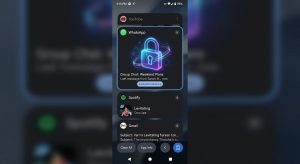
To counteract this, you must physically lock the application into the device’s volatile memory.
How to implement the fix:
- Open the application you need notifications from (e.g., WhatsApp).
- Swipe up from the bottom of your screen and hold (or tap the square navigation button) to open the Recent Apps/Multitasking menu.
- Depending on your specific brand, you will either need to long-press the app’s preview card, or tap the three dots/gear icon hovering above the app card.
- A menu will pop up. Select the Lock option (often represented by a physical padlock icon).
- A small padlock will now appear next to the app in the multitasking view.
When an app is locked in memory, clicking “Clear All” in your recent apps tray will close everything except the locked application. The operating system is now forced to keep the app’s notification listener continuously active in the RAM.
Step 5: Reset Corrupted App Preferences
If you have applied all the battery and data overrides listed above and a specific app is still refusing to push notifications, the app’s internal notification channel may have become corrupted during a recent software update. Android handles notifications through segmented “channels” (e.g., separating direct messages from group messages). If the registry for these channels breaks, the operating system simply drops the incoming alert.
How to implement the fix:
- Go to Settings > Apps > See all apps.
- Tap the three vertical dots in the top right corner of the screen.
- Select Reset app preferences.
- A warning will appear stating this will reset all disabled apps, notification restrictions, and background data restrictions across your entire device. Tap Reset apps.
This acts as a global refresh for your system’s notification registry. It will not delete any personal data, photos, or logins, but it will force every application to re-register its notification channels with the Android operating system, often instantly curing localized delays.
Step 6: Disable Adaptive Notifications
Adaptive Notifications is an Android feature designed to use machine learning to sort your alerts, silently demoting notifications from apps it thinks you do not care about. Unfortunately, the AI frequently guesses incorrectly, burying highly important emails or messages without causing your phone to vibrate or light up.
To turn this off, go to Settings > Notifications. Scroll down to find Enhanced notifications or Adaptive notifications (often hidden under Advanced Settings) and toggle the feature entirely off. This ensures that every single push notification is treated with equal priority and pushed to your lock screen immediately.
Conclusion: Balancing Battery and Connectivity
Smartphone manufacturers have effectively prioritized benchmark battery statistics over fundamental device reliability. By default, your Android phone is actively working against your need for real-time information. Reclaiming your notifications requires a deliberate, manual intervention into the system’s battery and data hierarchies. By exempting your core communication tools from Doze, overriding OEM deep sleep protocols, and guaranteeing unrestricted background data, you can finally trust your smartphone to alert you the precise second a crucial message arrives. You may sacrifice a marginal percentage of your daily battery life, but the trade-off for absolute digital reliability is undeniably worth it.
Frequently Asked Questions (FAQs)
Q1: Will disabling battery optimization severely drain my battery?
For modern, well-coded applications like WhatsApp or Gmail, the battery impact is negligible—often less than a 2% difference over a 24-hour period. However, if you disable optimization for poorly coded games or heavy social media feeds (like Facebook or TikTok), you may notice a more significant battery drain as they constantly refresh in the background.
Q2: Why do notifications only appear when I open the specific app?
This is the textbook symptom of aggressive background data restriction or a killed RAM process. Because the app is not allowed to run in the background, it cannot ping its server. The moment you open the app, it is granted foreground network access, allowing it to instantly download all the messages that were queued on the server while the app was asleep.
Q3: Does turning on “Battery Saver” mode automatically delay notifications?
Yes. When you manually activate your phone’s overarching Battery Saver mode (usually when your battery drops below 15%), the Android operating system globally overrides all individual app settings. It immediately restricts background data and stops almost all background syncing to keep the phone alive. Notifications will inherently be delayed until the phone is plugged into a charger.
Q4: Can a third-party launcher or app killer cause notification delays?
Absolutely. If you have installed “RAM Boosters,” “Task Killers,” or antivirus applications, they frequently conflict with Android’s native notification listeners. Android manages its own RAM efficiently; third-party task killers forcefully shut down messaging services, directly causing delayed alerts. You should uninstall these utility apps immediately.
Q5: Are delayed notifications caused by network issues?
Sometimes. If you are connected to a highly restricted corporate Wi-Fi network or a public hotspot with a restrictive firewall, the network itself might be blocking the specific ports used by Google’s Firebase Cloud Messaging (FCM) servers, which is the pipeline Android uses to deliver push notifications. Disconnecting from Wi-Fi and using cellular data will confirm if the network is the culprit.
Sources & References
- Android Open Source Project (AOSP) Documentation: Technical guidelines regarding Android Doze functionality, App Standby Buckets, and background execution limits.
- Samsung Knox & One UI Support: Manufacturer specifications regarding “Deep Sleeping Apps,” Device Care AI management, and background network limits.
- Google Firebase Cloud Messaging (FCM) Guidelines: Architecture documentation outlining how server-side pings trigger client-side notification wake-locks on Android OS.