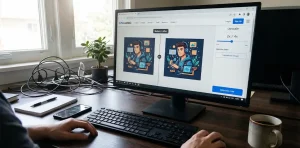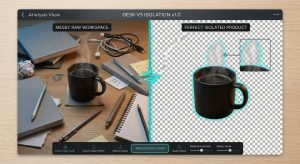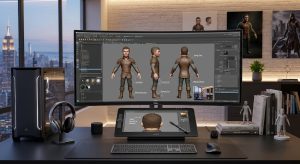
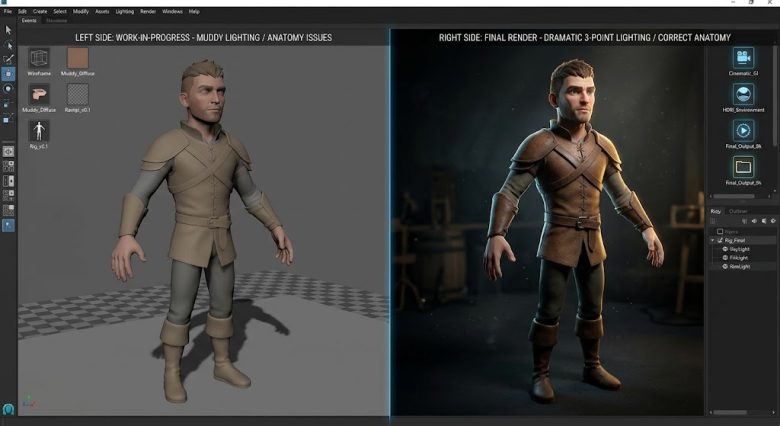
You have spent hours crafting the perfect prompt. The composition is exactly what you envisioned, the character design is locked in, and the color palette is flawless. But when you look closer, the illusion shatters. The lighting is completely flat, shadows are falling in impossible directions, and the character’s left hand has seamlessly melted into the coffee cup they are holding.
These bizarre anomalies are the most frustrating part of digital AI generation. Whether you are generating 3D cartoon storyboards, hyper-realistic architectural concepts, or editorial illustrations, these rendering errors instantly degrade the professional quality of your work.
The underlying issue is that diffusion models do not actually “understand” three-dimensional space, skeletal anatomy, or real-world physics. They are simply predicting pixel patterns based on their training data. When that data conflicts—for example, when a prompt asks for a brightly lit subject in a dark alleyway—the algorithm panics, resulting in muddy contrast and structural hallucinations.
Rerolling the entire prompt and hoping for a better result is a massive drain on computing credits and time. Fixing these errors requires surgical intervention using advanced prompting techniques, negative constraints, and localized editing tools.
Here is exactly how to salvage ruined generations, fix muddy lighting, and correct anatomical distortions without starting from scratch.
The Anatomy of an AI Lighting Disaster
Bad lighting in AI generation usually manifests in two specific ways: “muddying” and “over-exposure.” Muddying happens when the AI tries to blend conflicting light sources, resulting in a gray, flat image with no true blacks or pure whites. Over-exposure occurs when the AI takes words like “sunny” or “bright” too literally, washing out all the facial details and textures.
Because diffusion models process the entire text prompt simultaneously, they often fail to separate the lighting of the environment from the lighting of the subject. If you request a “dark, eerie haunted house,” the AI will likely apply a dark, gray filter over everything, completely hiding your main character in the shadows.
To fix this, you must take manual control of the virtual lighting setup within your prompt, dictating exactly where the light should fall and how it should interact with your subject.
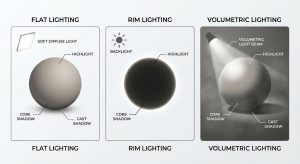
Forcing Professional Lighting Setups
You cannot rely on the AI to guess the mood you want. You must use specific terminology from the photography and 3D rendering industries to force the algorithm into a structured lighting pattern.
Utilizing Cinematic Lighting Keywords
Instead of using generic words like “bright” or “dark,” use technical lighting directions. If your character is getting lost in a dark background, add “strong rim lighting” or “backlit” to your prompt. This forces the AI to create a glowing outline around your subject, immediately separating them from the background.
For dramatic portraits, use “Rembrandt lighting” or “chiaroscuro.” These terms train the AI to cast strong, directional shadows on one side of the face while illuminating the other, creating instant depth and 3D volume. If you want a soft, even look for a commercial product shot, use “studio softbox lighting” or “global illumination.”
Separating Subject from Background Lighting
To prevent environmental lighting from ruining your subject, you must segment your prompt. Clearly define the background, and then define the subject’s lighting as an independent variable.
For example: “A bustling cyberpunk street market at night, dark alleys. Subject is a 3D animated character, illuminated by a bright, warm neon key light, soft glowing face.” By explicitly stating that the subject is receiving a specific light source, you prevent the AI from applying the “dark alley” shadows to the character’s facial features.
Conquering Strange Anatomical Distortions
While bad lighting makes an image look amateur, anatomical distortions make it unusable. Melted limbs, fused objects, extra fingers, and asymmetrical eyes are the classic hallmarks of AI-generated art.
These occur because the AI lacks a skeletal wireframe. When generating a hand, it knows a hand involves a palm and fingers, but it doesn’t understand the rigid biological rule of “exactly four fingers and one thumb.”
The Power of Negative Prompting
The first line of defense against distortions is a heavily structured negative prompt. While the main prompt tells the AI what to create, the negative prompt explicitly bans specific elements from the generation.
If you are using Stable Diffusion or Midjourney (using the --no parameter), you must build a robust list of physical constraints. A standard anti-distortion negative prompt should always include: “mutated, extra limbs, poorly drawn hands, fused fingers, elongated proportions, asymmetrical eyes, melted textures, extra fingers, deformed.”
By explicitly banning these visual traits, you force the algorithm to discard noise patterns that lead to those specific structural failures, drastically increasing the success rate of complex human poses.
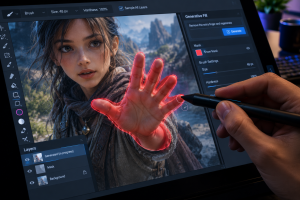
Surgical Corrections Using Inpainting
Even with the best prompts, a generation might yield a 95% perfect image, ruined by one melted hand or a distorted eye. Re-rolling the entire prompt will destroy the 95% you love. The solution is inpainting.
Inpainting allows you to mask out a specific, localized area of an image and ask the AI to regenerate only that exact spot. This feature is native to Stable Diffusion, Midjourney (via the “Vary Region” tool), and Adobe Photoshop’s Generative Fill.
When inpainting a distorted hand, do not use your original, long prompt. Change the prompt to describe only what you want in that masked area. If you masked the hand, your prompt should simply be: “A perfectly formed hand holding a coffee cup, five fingers, high detail.”
Keep the masked area relatively small, but provide enough surrounding context so the AI understands where the wrist connects. This localized regeneration allows you to fix micro-distortions without altering the perfect lighting and composition of the surrounding image.
Repairing Background Melt and Perspective Errors
Characters are not the only victims of AI distortion. Architectural backgrounds frequently suffer from “perspective melt,” where straight lines suddenly curve, stairs lead nowhere, and buildings merge into one another like liquid.
This happens when the AI attempts to blend two different camera angles—for example, trying to render a building from a low angle while simultaneously rendering the street from a top-down perspective.
Implementing Depth Maps and ControlNet
To enforce rigid background structures, you must restrict the AI’s compositional freedom. In Stable Diffusion, this is achieved using ControlNet with a Depth map or Canny Edge detection.
By feeding a basic 3D block-out or a simple sketch into ControlNet, you provide the AI with a hard mathematical framework. The AI is forced to paint its textures and lighting directly onto your pre-defined structural lines. This entirely eliminates curving architecture, melting horizons, and impossible geometric shapes, resulting in completely stable background environments.
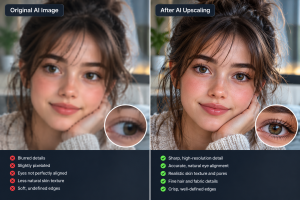
The Role of AI Upscalers in Fixing Artifacts
Sometimes, an image doesn’t have major anatomical flaws, but it suffers from micro-artifacts. The eyes might look slightly hazy, the skin texture might resemble plastic, or the background elements might look like muddy watercolor brushstrokes.
Traditional sharpening tools in Photoshop cannot fix this because the detail does not actually exist in the pixels. Instead, you need a generative AI upscaler like Magnific AI, Topaz Photo AI, or specialized ESRGAN models.
These upscalers do not just enlarge the image; they actually hallucinate missing details. When fed a slightly muddy AI render, a generative upscaler will analyze a blurry eye and redraw it with hyper-realistic eyelashes, reflections, and iris details. It will take a flat, plastic-looking jacket and inject realistic fabric weaves and micro-shadows. Running your final, inpainted image through a high-end upscaler is the final step to erasing the “AI look” and achieving a flawless, professional finish.
Frequently Asked Questions
Why do AI image generators struggle so much with hands and fingers?
Hands are highly complex anatomical structures that look vastly different from every angle. In the AI’s training data, hands are often obscured holding objects, moving, or curled into fists. The algorithm learns the general texture and shape of fingers but fails to grasp the rigid biological logic that a human hand only possesses five digits.
Does changing the aspect ratio cause more distortions?
Yes. Most base AI models are heavily trained on square (1:1) images. When you force the AI to generate ultra-wide (16:9) or tall (9:16) aspect ratios, it often tries to fill the extra space by duplicating the subject, resulting in characters with two heads, extra torsos, or stretched backgrounds.
How do I fix lighting on a character without changing the background?
The most effective way is to use a regional prompting tool or inpainting. Mask the character and apply a new prompt specifically describing the lighting (e.g., “bright studio lighting, high contrast”). Alternatively, you can use traditional photo editing software to dodge and burn the lighting manually after the generation is complete.
What is the best negative prompt to avoid bad anatomy?
A highly effective negative prompt for anatomy is: “mutated, extra fingers, poorly drawn hands, fused anatomy, missing limbs, six fingers, extra limbs, bad anatomy, deformed, distorted face, asymmetrical eyes, unnatural body.” Paste this into every character generation you execute.
Can Adobe Photoshop fix AI distortions better than Midjourney?
Photoshop’s Generative Fill is often superior for localized fixes (inpainting) because it allows for precise lasso masking and seamlessly blends the edges into the existing image. Midjourney’s “Vary Region” is powerful, but Photoshop offers finer control for removing extra fingers, fixing crooked teeth, or straightening warped background lines.
Sources & References
- Stable Diffusion Documentation: Guidelines on utilizing ControlNet (Depth and Canny models) for structural integrity.
- Midjourney Parameter Guide: Advanced techniques for using the
--noparameter (negative prompting) and the Vary Region tool. - Topaz Labs: Technical breakdowns on how generative upscaling restores micro-details and removes AI artifacts.
- Digital Photography Review: Principles of three-point lighting, Rembrandt lighting, and how to apply real-world studio lighting concepts to digital rendering.