Nothing stops a website operator in their tracks faster than opening a browser tab and seeing a stark white screen with five words: Error establishing a database connection.
Unlike a broken plugin that might distort a page layout or a missing image that leaves an empty box, a database connection failure takes the entire site offline. Your visitors cannot read your posts, search engines cannot crawl your URLs, and you cannot even log into /wp-admin to see what went wrong. If this persists during a Google AdSense review or while crawling bots are evaluating your site’s reliability, it directly threatens your site’s standing.
To fix this without guessing—or accidentally wiping your site data—you need to understand what is actually failing under the hood and work through the points of failure in a logical order.
Why WordPress Loses Connection to Its Database
Every WordPress website is split into two distinct parts:
- The File System: Your themes, plugins, media uploads, and core PHP scripts stored in your
/public_html/folder. - The MySQL / MariaDB Database: Where all your actual content lives—post text, page structures, user accounts, plugin settings, and category hierarchies.
When someone visits your URL, WordPress executes a PHP script that knocks on the database’s door, hands over a set of login credentials, pulls the text for that specific page, wraps it in your theme’s HTML, and serves it to the browser.
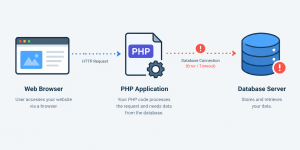
If that handshake fails, WordPress has no content to display and throws the database connection error. In nearly every real-world scenario, the failure comes down to one of four root causes:
- Mismatched Credentials in
wp-config.php: The database name, username, password, or host address stored in your configuration file no longer matches what your hosting server expects. This is the number one culprit after a site migration or hosting password reset. - Corrupted Database Tables: A sudden server reboot, an interrupted plugin update, or a bloated
wp_optionstable left a MySQL table locked or unreadable. - Exhausted Database Server Resources: Shared hosting accounts have strict limits on simultaneous MySQL connections. A sudden traffic spike, an aggressive bot crawl, or a poorly coded plugin running unindexed queries can cause the MySQL server to refuse new connections.
- Corrupted Core Files: Rarely, a failed WordPress core update damages the core database class files inside
/wp-includes/.
Step 1: Check Whether the Error Happens on /wp-admin Too
Before you open an FTP client or touch a single line of code, test how the error behaves across the front end and the back end of your site.
Open a new browser tab and navigate to [yourdomain.com/wp-admin/](https://yourdomain.com/wp-admin/).
- Scenario A: Both the homepage and
/wp-admin/display the exact same message: “Error establishing a database connection.” This means WordPress cannot authenticate with or reach the MySQL server at all. Proceed directly to Step 2. - Scenario B: The
/wp-admin/screen gives you a slightly different message: “One or more database tables are unavailable. The database may need to be repaired.” This is great news—it confirms your credentials are valid and the server is online, but a specific table is corrupted. If you see this message, skip straight to Step 4.
Step 2: Inspect and Verify Your wp-config.php Credentials
Even if you haven’t manually edited your configuration file recently, hosting providers occasionally migrate accounts between internal database clusters, update local host sockets, or enforce automated security password rotations. Checking wp-config.php should always be your first hands-on troubleshooting step.
1. Open Your Root Directory
Log into your hosting control panel (cPanel, Plesk, hPanel, or a custom dashboard) and open File Manager, or connect to your server using an SFTP client like FileZilla. Navigate to your site’s root directory—usually named public_html, www, or htdocs.
2. Locate the Database Constants
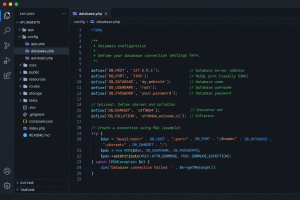
Right-click on wp-config.php and select Edit (or download a backup copy to your desktop first—always keep an untouched copy before making edits). Scroll down until you find the MySQL settings block:
// ** MySQL settings - You can get this info from your web host ** //
/** The name of the database for WordPress */
define( 'DB_NAME', 'your_database_name' );

/** MySQL database username */
define( 'DB_USER', 'your_database_user' );

/** MySQL database password */
define( 'DB_PASSWORD', 'your_strong_password' );

/** MySQL hostname */
define( 'DB_HOST', 'localhost' );
3. Cross-Check Every Value Against Your Hosting Panel
Leave the wp-config.php editor open in one tab, and open MySQL Databases (or Database Management) in your hosting control panel in a second tab. Verify these four exact items:
How to Fix It Quickly
If everything looks visually identical but the site still won’t connect, do not trust your eyes on the password.
- Go to MySQL Databases in your hosting panel.
- Find the database user listed in
DB_USERand click Change Password. - Generate a new alphanumeric password (avoid quotes and backslashes to prevent PHP parsing errors).
- Paste that exact password into
define( 'DB_PASSWORD', 'new_password_here' );insidewp-config.phpand save the file. - Also ensure the user has ALL PRIVILEGES checked for that database.
Clear your browser cache and reload your site. If the error persists, move to Step 3.
Step 3: Test Whether the MySQL Server Is Actually Running (With a Custom Test Script)
Sometimes your wp-config.php file is 100% accurate, yet WordPress still throws the error because the MySQL service on the server has crashed, hit a memory ceiling, or blocked your local user socket.
Instead of guessing whether the flaw is inside WordPress or inside your web host’s server, you can isolate the problem in 60 seconds using a standalone PHP test file.
- In your
public_htmlfolder (right next towp-config.php), create a new file nameddb-check.php. - Paste the following diagnostic code into the file, replacing the four placeholder values with the exact credentials from your
wp-config.php:
<?php
// Temporary MySQL Connection Diagnostic Script
$servername = "localhost";
$username   = "your_database_user";
$password   = "your_strong_password";
$database   = "your_database_name";

$connection = mysqli_connect($servername, $username, $password, $database);

if (!$connection) {
    die("Connection Failed. Exact MySQL Error: " . mysqli_connect_error());
}
echo "Success! PHP connected to MySQL cleanly.";
mysqli_close($connection);
?>
- Visit
[yourdomain.com/db-check.php](https://yourdomain.com/db-check.php)in your browser. - Read the output carefully:
-
-
Access denied for user...: Your username, password, or user privileges in cPanel are definitely wrong. Return to Step 2 and reset them. -
Unknown MySQL server host...orConnection refused: Either yourDB_HOSTvalue is wrong, or your hosting provider’s MySQL service has crashed. Contact your host’s support team and paste that exact error line into the ticket. -
Too many connections: Your database is overwhelmed by concurrent queries (see Step 5). -
Success! PHP connected to MySQL cleanly.: Your server and credentials are fine! The issue is either corrupted database tables or corrupted WordPress core files.
-
Important Security Note: Delete
db-check.phpfrom your server immediately after running this test so you never leave database diagnostics exposed to the public web.
Step 4: Repair Corrupted WordPress Database Tables
If your credentials work—or if /wp-admin/ explicitly told you that one or more database tables are unavailable—you need to repair the database. You have two clean ways to do this depending on whether you prefer using a visual interface or WordPress’s built-in repair tool.
Method A: Using WordPress’s Native Database Repair Tool
WordPress ships with a hidden repair utility located at /wp-admin/maint/repair.php. It is disabled by default for security reasons, so you have to switch it on first.
- Open
wp-config.phpin your file editor. - Scroll down to the line that says
/* That's all, stop editing! Happy publishing. */. - Immediately above that line, paste this single directive:
define( 'WP_ALLOW_REPAIR', true );
- Save
wp-config.phpand open your browser to:[https://yourdomain.com/wp-admin/maint/repair.php](https://yourdomain.com/wp-admin/maint/repair.php) - You will see two buttons: Repair Database and Repair and Optimize Database. Click Repair Database first (it runs faster and puts less strain on an unstable server).
- Once the script finishes checking and fixing each
wp_table, openwp-config.phpimmediately and delete theWP_ALLOW_REPAIRline. Anyone on the internet can trigger that repair page without logging in while that constant remains active.
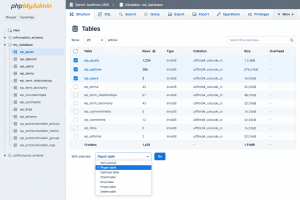
Method B: Repairing Tables Directly via phpMyAdmin
If the native WordPress repair script times out, use phpMyAdmin directly from your hosting panel:
- Open your hosting dashboard and click phpMyAdmin.
- In the left sidebar, click on your WordPress database name to expand the table list (
wp_posts,wp_options,wp_usermeta, etc.). - Scroll to the bottom of the table list and check the Check all box.
- Click the drop-down menu next to it (labeled With selected:) and choose Repair table.
- phpMyAdmin will iterate through every table and return an
OKstatus next to each repaired table.
Note on Storage Engines: If phpMyAdmin replies with “The storage engine for the table doesn’t support repair”, your tables are using InnoDB rather than the older MyISAM engine. InnoDB repairs itself automatically via crash recovery logs when MySQL restarts. If an InnoDB table is corrupted and unreadable, click Check table instead of Repair table, or restore that specific table from your most recent backup.
Step 5: Resolve Resource Spikes, Faulty Plugins, and Corrupted Core Files
What if your credentials are right, your tables aren’t corrupted, and the error comes and goes intermittently? When a site works for ten minutes, throws a database connection error for two minutes, and then recovers on its own, you are dealing with MySQL connection exhaustion.
1. Disable Resource-Hogging Plugins via FTP
A poorly optimized related-posts plugin, an aggressive security scanner, or a broken WooCommerce add-on can fire hundreds of unclosed database queries per page load. Because you cannot access /wp-admin/ during an outage, deactivate your plugins through the file system:
- Open your File Manager or FTP client and navigate to
/wp-content/. - Rename the
pluginsfolder toplugins_old. This immediately deactivates all plugins across the site. - Check your website. If the site loads immediately, a plugin was choking your database.
- Rename
plugins_oldback toplugins, then go inside the/wp-content/plugins/directory and rename individual plugin folders one by one until you identify the specific offender.
2. Inspect Your Server Error Logs
Stop guessing and read what PHP recorded at the exact moment of failure. Inside your public_html folder (or inside /wp-admin/), look for a file named error_log or php_errorlog. Open it and scroll to the very bottom. If you see lines mentioning Allowed memory size exhausted or Mysql server has gone away triggered by a specific file path inside /wp-content/themes/ or /wp-content/plugins/, you have your exact culprit.
3. Replace Corrupted Core WordPress Files
If a recent update failed halfway through, core database connector files like wp-includes/wp-db.php or wp-includes/class-wpdb.php may be unreadable.
- Download a fresh
.zipcopy of WordPress fromwordpress.org/download/. - Extract the folder on your computer.
- Delete the
wp-contentfolder and thewp-config-sample.phpfile from the extracted download on your computer (so you don’t overwrite your themes, plugins, or uploads). - Upload the remaining clean
wp-adminandwp-includesdirectories to your server via SFTP, choosing “Overwrite existing files” when prompted.
How to Prevent Database Connection Errors Going Forward
Once your site is back online, take ten minutes to harden your setup so a database hiccup doesn’t happen again—especially when your site is being reviewed for monetization or experiencing traffic growth:
- Implement Object and Page Caching: Every time an uncached visitor loads a page, WordPress hits MySQL. Installing a solid page caching plugin (or enabling server-level Redis/Memcached object caching) serves static HTML files to visitors, cutting database queries by up to 80%.
- Clean Up
wp_optionsAutoloaded Data: Over time, uninstalled plugins leave behind megabytes of orphaned settings set toautoload = 'yes'in thewp_optionstable. WordPress loads all of this data into memory on every single page request. Periodically audit yourwp_optionstable and keep total autoloaded data under 800 KB. - Automate Off-Site Database Backups: Never rely solely on your web host’s weekly snapshot. Configure an automated backup solution that sends a compressed
.sqlexport of your database to external cloud storage (like Google Drive or Amazon S3) daily. A database backup takes only seconds to export and can save hours of troubleshooting.
Frequently Asked Questions
1. Does “Error establishing a database connection” mean I lost all my posts and pages?
No. In almost all cases, your posts, pages, and settings are still sitting safely inside your MySQL server. The error simply means the bridge between your PHP files and the database is temporarily broken due to a wrong password, a crashed MySQL process, or a locked table.
2. Why did this error suddenly appear when I didn’t touch wp-config.php?
If you didn’t edit any files, the error was triggered by a change on the server side. The three most common silent triggers are: an automated plugin update that left a database table locked, a sudden surge of bot traffic maxing out your shared hosting MySQL connection limit, or your hosting provider upgrading their internal MySQL/MariaDB server software.
3. Can a spike in traffic cause a database connection error?
Yes. Without page caching, every visitor triggers multiple PHP-to-MySQL queries. Most entry-level shared hosting plans cap concurrent MySQL connections between 15 and 30 users at the exact same millisecond. Once that cap is reached, the server drops additional database requests until existing connections close.
4. What should I use for DB_HOST if localhost isn’t working?
While 90% of cPanel hosts use localhost, try changing DB_HOST to 127.0.0.1 first—this forces PHP to connect via TCP/IP rather than a local Unix socket, which resolves socket path misconfigurations. If you use managed cloud hosting, check your host’s dashboard for a dedicated database hostname and port number (such as db.yourdomain.com:3306).
5. Will this error hurt my SEO rankings or Google AdSense approval?
A brief outage lasting a few minutes won’t permanently harm your rankings. However, if Googlebot attempts to crawl your site repeatedly over several hours or days and encounters a 500-level database error, Google Search Console will flag your URLs as unreachable, and automated AdSense review crawlers will reject the application under “Site Down or Unavailable.” Fixing the root cause—and adding page caching to prevent intermittent drops—protects both your indexing and your ad reviews.
References & Technical Sources
- WordPress Developer Resources (Advanced Administration Handbook): Common WordPress Errors – Error Establishing a Database Connection. https://developer.wordpress.org/advanced-administration/wordpress/common-errors/#error-establishing-a-database-connection
- WordPress Developer Reference: Editing
wp-config.php– Configure Database Settings &WP_ALLOW_REPAIR. https://developer.wordpress.org/advanced-administration/wordpress/wp-config/ - WordPress Core Class Reference:
wpdb– WordPress Database Access Abstraction Object. https://developer.wordpress.org/reference/classes/wpdb/ - MySQL 8.0 Official Reference Manual: B.3.2.2 Can’t Connect to [Local] MySQL Server & Access Denied Causes. https://dev.mysql.com/doc/refman/8.0/en/can-not-connect-to-server.html
- PHP Official Documentation:
mysqli_connect& Connection Error Handling. https://www.php.net/manual/en/function.mysqli-connect.php