
Slow websites lose visitors, and more importantly, they lose revenue. When a user lands on your WordPress site, they expect it to load almost instantly. If it doesn’t, they will hit the back button before they even read your first sentence.
One of the biggest culprits behind sluggish website performance is unoptimized images. High-resolution photographs and large graphic files easily consume the majority of a webpage’s total weight. When you upload a raw 5MB image directly from your smartphone or camera straight into your WordPress media library, you are forcing every single visitor’s browser to download that massive file before the page can fully render.
Optimizing your images is not just a recommendation; it is a strict requirement if you want to pass Google’s Core Web Vitals, improve your Largest Contentful Paint (LCP) scores, and rank higher in search results. Below is a comprehensive breakdown of the exact practices you need to implement to optimize your WordPress images for maximum speed.
1. Shift to Next-Generation Formats (WebP and AVIF)
For years, the internet relied on JPEG for photographs and PNG for graphics with transparent backgrounds. While these formats are still widely supported, they are incredibly outdated when it comes to file compression. To drastically improve your load times, you need to transition to next-generation image formats, specifically WebP and AVIF.
Why WebP? Developed by Google, WebP provides superior lossless and lossy compression for images on the web. A WebP image is typically 25% to 35% smaller than a comparable JPEG or PNG file, without any noticeable drop in visual quality. Because it supports both transparency and animation, it can effectively replace both PNGs and GIFs on your site.
The Rise of AVIF AVIF is an even newer open-source format that compresses files significantly better than WebP. While browser support for AVIF was initially slow, modern browsers now support it fully. AVIF is particularly exceptional at handling highly detailed images at very low bitrates.
Actionable Step: You don’t need to manually convert images on your computer. Use a WordPress plugin that automatically converts your traditional uploads into WebP or AVIF formats and serves them to compatible browsers.
2. Resize Dimensions Before Uploading
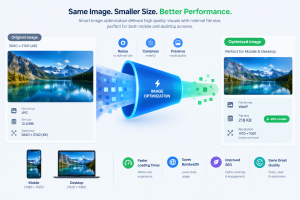
One of the most common mistakes site owners make is uploading massive images and relying on HTML or CSS to scale them down. If you upload an image that is 4000 pixels wide, but your blog’s content area is only 800 pixels wide, WordPress still forces the user’s browser to download the massive 4000-pixel file. The browser then has to work overtime to shrink the image visually to fit the screen. This wastes bandwidth and processing power.
How to find your optimal image width: Find out the maximum width of your website’s content container. For most modern WordPress themes, this is usually between 800px and 1200px.
Before uploading any image to WordPress, use a photo editor (like Photoshop, Affinity Photo, or even standard OS preview tools) to resize the maximum width of the image to match your site’s container. There is almost no scenario where a standard blog post needs an image wider than 1200 pixels unless it is a full-screen parallax background.
3. Master the Balance of Lossy vs. Lossless Compression
Compression is the process of removing hidden data from an image file to reduce its size. There are two primary types of compression you need to understand:
- Lossless Compression: This reduces the file size without removing any visual data or degrading the image quality. It achieves this by stripping out unnecessary metadata (like the camera model used, GPS coordinates, and creation dates). While it preserves perfect quality, the file size reduction is usually minimal (around 5% to 15%).
- Lossy Compression: This permanently eliminates data from the file. It actually discards some pixel information, which slightly degrades the image quality. However, when done correctly, the human eye cannot spot the difference, and the file size reduction can be massive (often 70% to 90%).
For a WordPress blog aimed at monetization and speed, Lossy compression is almost always the right choice. Your goal is to find the sweet spot where the image still looks sharp and professional, but the file size is as small as possible. Most image optimization tools allow you to set a compression level. Setting your compression to around 80% to 85% usually yields a perfectly clear image with a fraction of the original file size.
4. Implement Lazy Loading Correctly
Lazy loading is a technique that delays the loading of images until they are actually needed.
Without lazy loading, a browser attempts to download every single image on a webpage the moment the user clicks the link. If you have a long article with 10 images, the browser tries to load all 10, even the ones at the very bottom of the page that the user hasn’t scrolled to yet.
With lazy loading, the browser only loads the images visible on the user’s screen (above the fold). As the user scrolls down, the subsequent images are loaded just before they enter the viewport. This drastically reduces the initial page load time and saves bandwidth.
WordPress has included native lazy loading by default since version 5.5, adding a loading="lazy" attribute to images. However, it is crucial to ensure that your First Contentful Paint (FCP) or Largest Contentful Paint (LCP) images (like your main featured image at the top of the article) are excluded from lazy loading. If you lazy-load the very first image on the screen, it will actually hurt your Core Web Vitals score because the browser will delay fetching the most important visual element on the page.
5. Leverage a Content Delivery Network (CDN)
Where your images are physically hosted matters. If your WordPress site is hosted on a server in New York, a visitor from London will experience a slight delay as the image data travels across the Atlantic Ocean.
A Content Delivery Network (CDN) solves this geographic latency. A CDN is a network of servers distributed globally. When you use a CDN, copies of your images are stored on these servers all around the world. When a user visits your site, the CDN detects their location and serves the images from the server closest to them.
Beyond general CDNs like Cloudflare, there are specialized Image CDNs. These services not only serve the images locally but also optimize them on the fly. They can detect the user’s device (desktop vs. smartphone) and browser, automatically resize the image to fit their specific screen, convert it to WebP, and deliver it in milliseconds.

6. Utilize the Best WordPress Image Optimization Plugins
Handling all of these tasks manually is impossible for a growing website. Fortunately, the WordPress ecosystem offers several powerful plugins that automate the entire process. Once configured, these plugins will work silently in the background every time you upload a new image.
Here are the top-tier options to consider:
- ShortPixel Image Optimizer: Highly regarded for its excellent lossy compression algorithms. It automatically converts images to WebP/AVIF and serves them to browsers. It also optimizes thumbnails and background images.
- Imagify: Created by the same team behind WP Rocket. It offers a incredibly user-friendly interface with three distinct levels of compression (Normal, Aggressive, Ultra). It makes bulk optimization of your existing media library very straightforward.
- Smush: One of the most popular optimization plugins on the repository. The free version provides excellent lossless compression and native lazy loading, though you will need the premium version for maximum lossy compression and WebP conversion.
Pick one plugin, configure its settings to resize large uploads automatically, set it to generate WebP formats, and choose a high-quality lossy compression level.
7. Clean Up Your Media Library
Over time, WordPress media libraries become bloated. Every time you upload one image, WordPress automatically generates several different sizes of that image (Thumbnail, Medium, Large, and often custom sizes created by your theme).
If you are changing themes or pruning old content, you likely have thousands of unused image sizes sitting on your server, slowing down backend database queries and eating up server storage.
Use tools like Media Cleaner to scan your WordPress installation and safely delete images that are not attached to any post, page, or metadata. Furthermore, you can use plugins to stop WordPress from generating unnecessary image sizes in the first place, keeping your server clean and responsive.
Frequently Asked Questions
What is the ideal file size for a WordPress image?
As a general rule, try to keep large featured images under 150KB, and smaller inline images under 75KB. While it depends on the complexity of the image, keeping your total page weight under 1.5MB is a good target for fast load times.
Does optimizing images really improve SEO?
Yes, directly and indirectly. Google uses page speed and Core Web Vitals as ranking factors. Heavy, unoptimized images cause poor Largest Contentful Paint (LCP) scores, which will harm your rankings. Faster sites also have lower bounce rates, signaling to search engines that the page provides a good user experience.
Will image compression make my photos look blurry?
Not if done correctly. Lossless compression won’t change the look at all. Lossy compression, when kept around the 80% quality mark, removes data that the human eye cannot perceive on a standard digital screen. The images will remain sharp and professional.
Can I undo image compression if I don’t like the result?
Most premium optimization plugins (like ShortPixel and Imagify) have a backup feature. They save a copy of your original, uncompressed image on your server, allowing you to restore it or re-compress it at a different quality level with a single click.
Sources and References
- Google Developers – Web Vitals: Comprehensive guidelines on Largest Contentful Paint (LCP) and how image loading impacts user experience metrics.
- Mozilla Developer Network (MDN) Web Docs: Technical documentation on HTML
srcset, native lazy loading attributes, and browser support for WebP and AVIF formats. - WordPress Core Documentation: Official guidelines on how WordPress handles media uploads, default image sizes, and native responsive image features.