We have all been there. You press the power button on your trusty Windows laptop, go make a cup of coffee, check your phone, come back to your desk, and… Windows is still spinning its loading circle. Once you finally get to the desktop, opening a single Google Chrome tab feels like asking your computer to run a marathon in quicksand.
A laggy, unresponsive laptop doesn’t just ruin your productivity; it is genuinely infuriating. When every click takes ten seconds to register, the temptation to throw the machine out the window and buy a brand-new $1,000 replacement is strong.
But before you drain your savings account, you need to know a secret the computer industry doesn’t often talk about: your old laptop is probably not obsolete. In most cases, a sluggish Windows machine is suffering from a combination of software bloat, thermal throttling, and outdated storage technology. By applying a few targeted hardware and software tweaks, you can breathe years of new life into a machine you thought was destined for the recycling bin.
Here are the five most effective, proven methods to speed up an old, laggy Windows laptop, ranging from zero-cost software tweaks to budget-friendly hardware upgrades.
1. Upgrade to a Solid State Drive (SSD) (The Ultimate Hardware Fix)
If you only take one piece of advice from this entire article, let it be this one. If your laptop is currently running on a traditional Hard Disk Drive (HDD), swapping it out for a Solid State Drive (SSD) will result in a night-and-day difference in performance. It is the single most impactful upgrade you can make.
Why it works: Traditional HDDs are mechanical. They rely on physical, spinning magnetic platters and a moving mechanical arm to read and write data. When Windows wants to open a file, that arm has to physically search for the data on the disk. This takes time, especially as the drive ages.
SSDs, on the other hand, have zero moving parts. They use NAND flash memory (similar to the storage in your smartphone) to access data almost instantly. Upgrading to a cheap SATA SSD can make your boot times drop from three minutes to under fifteen seconds. Applications that used to bounce on your taskbar endlessly will open in the blink of an eye.
How to do it:
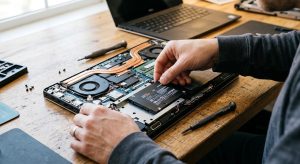
- Check your laptop model online to confirm it has an accessible 2.5-inch drive bay or an M.2 slot.
- Purchase a reputable SSD (brands like Samsung, Crucial, or Western Digital offer 500GB drives for very cheap).
- Use free cloning software (like Macrium Reflect) to copy your existing Windows installation from your slow HDD to your new SSD.
- Unscrew the bottom panel of your laptop, swap the drives, and turn it on.
2. Max Out Your RAM (Random Access Memory)
If upgrading to an SSD is the best way to make your laptop boot faster, adding more RAM is the best way to make it multitask better.
Your RAM is your computer’s short-term workspace. When you open a program, Windows moves it from your storage drive into your RAM so the processor can interact with it instantly. Modern web browsers like Google Chrome and Edge are notorious memory hogs. If your laptop only has 4GB or 8GB of RAM, opening a few heavy web tabs alongside Microsoft Word and Spotify will completely fill that workspace.
When your RAM is full, Windows panic-shifts data back to your storage drive (a process called “paging”). If you are using a slow HDD, this paging process will bring your laptop to an absolute crawl.
How to check and upgrade:
- Press Ctrl + Shift + Esc to open the Task Manager.
- Click the Performance tab and select Memory.
- Look at the bottom right where it says “Slots used.” If it says
1 of 2, you have an empty slot ready for an upgrade. - For modern Windows 10 and 11 usage, 16GB of RAM is the sweet spot. Buying an extra 8GB stick of laptop RAM (SO-DIMM) is incredibly affordable and usually takes five minutes to snap into place.
3. Debloat Windows and Disable Startup Programs
Over the years, every app you install tries to sneak its way into your Windows startup routine. Spotify, Skype, Adobe Creative Cloud, game launchers, and printer utilities all want to launch the moment you turn on your PC.
Having a dozen background apps fighting for your processor’s attention during startup is a guaranteed way to make your laptop feel unresponsive. You need to forcefully revoke their startup privileges.
How to disable startup bloatware:
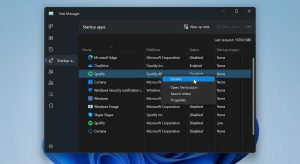
- Right-click the Windows Start button and select Task Manager.
- Click on the Startup tab (in Windows 11, it is the icon on the left sidebar that looks like a speedometer).
- Here, you will see a list of every application that boots up with your PC. Look at the column labeled “Startup impact.”
- Right-click any non-essential application (like Cortana, Skype, or third-party updaters) and select Disable.
Disabling an app here does not delete it; it simply stops it from running in the background until you manually open it.
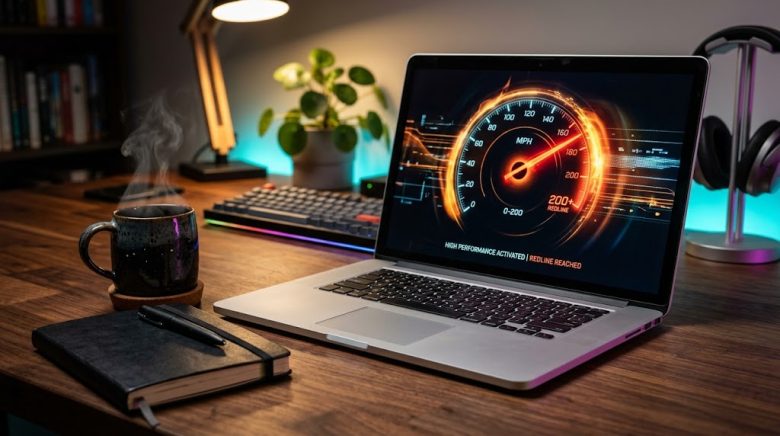
4. Change Power Plan Settings for Maximum Performance
By default, Windows laptops are configured to balance performance with battery life. As your laptop gets older and its battery degrades, Windows might aggressively throttle your processor (CPU) to prevent the battery from draining too quickly. This throttling literally slows down the mathematical calculations your computer makes, causing system-wide lag.
If you usually keep your laptop plugged into the wall charger, you can safely override these battery-saving constraints and force your laptop to use 100% of its processing power.
How to enable High Performance mode:
- Press the Windows Key, type Control Panel, and hit Enter.
- Change the “View by” setting in the top right to Large icons.
- Click on Power Options.
- Look for a plan named High performance. If you don’t see it, click the drop-down arrow next to Show additional plans.
- Select the High performance radio button.
You will likely notice an immediate increase in UI snappiness, though your laptop fans might spin up a bit louder as the processor is allowed to stretch its legs.
5. Perform a Clean Windows Reinstall (The Ultimate Software Reset)
If you have tried disabling startup apps, running antivirus scans, and updating your drivers, but your laptop still feels sluggish, your Windows registry might just be fundamentally bloated.
Over years of use, installing and uninstalling programs leaves behind thousands of orphaned registry keys, broken shortcut links, and hidden temporary files. Eventually, this software “rot” becomes too tangled for standard cleaner apps to fix. The best solution is a clean slate.
Windows 10 and 11 have a built-in feature that lets you reinstall the entire operating system while keeping all your personal files (documents, photos, videos) completely safe.
How to reset your PC:
- Press the Windows Key + I to open Settings.
- Go to Update & Security > Recovery (on Windows 10) or System > Recovery (on Windows 11).
- Under “Reset this PC,” click the Reset PC button.
- Select the option that says Keep my files.
- Follow the on-screen prompts.
This process will wipe out all installed software (including the bloatware slowing you down) and install a fresh, crisp version of Windows. You will have to reinstall your web browsers and favorite apps, but the resulting speed boost is absolutely worth the afternoon project.
Conclusion
A laggy laptop doesn’t necessarily mean it is time for an expensive trip to the electronics store. Computer hardware—specifically processors—has been incredibly powerful for over a decade. Usually, it is the storage bottleneck (HDDs) or RAM limitations that cause the frustration. By taking an afternoon to swap in an SSD, add a bit of RAM, and aggressively cut down on Windows bloatware, you can make a five-year-old laptop feel like it just came out of the box today.
FAQs
Does deleting personal files and photos speed up my laptop?
This is a very common myth. Deleting photos, documents, and videos will free up storage space, but it will not make your laptop run faster. Your computer’s speed is dictated by the CPU, RAM, and the read/write speed of the drive, not by how many gigabytes of static photos are sitting on it. The only exception is if your C: drive is 99% full, which prevents Windows from creating temporary virtual memory files. Always leave at least 10% of your drive empty.
Will running a PC Cleaner tool fix my lag?
Most third-party “PC Booster” or “Registry Cleaner” apps are essentially snake oil. They rarely provide noticeable performance improvements and often run heavily in the background, consuming the exact system resources they claim to free up. You are much better off using the built-in Windows Disk Cleanup tool and manually managing your startup apps via Task Manager.
Should I defrag my laptop’s hard drive?
If you are still using a mechanical HDD, yes. Defragmenting reorganizes scattered data so the physical read head can find it faster. Windows usually does this automatically on a weekly schedule. However, never defrag a Solid State Drive (SSD). SSDs do not suffer from mechanical seek times, and defragmenting an SSD only writes unnecessary data to it, actively reducing its lifespan.
Is Windows 11 slower than Windows 10 on older laptops?
Yes, Windows 11 has stricter hardware requirements and heavier background security processes. If your older laptop is struggling to run Windows 10 smoothly, upgrading to Windows 11 will likely make the lag worse. Sticking to a clean, debloated installation of Windows 10 is the best path for aging hardware.
Sources & References
- Microsoft Support Documentation: Official guidelines on Windows recovery options, “Reset this PC” functionality, and managing startup applications via Task Manager.
- Crucial Memory Insights: Technical breakdowns of NAND flash storage (SSDs) versus mechanical magnetic storage (HDDs) in mobile computing environments.
- Intel Developer Zone: Whitepapers on CPU thermal throttling and how Windows Power Plans interact with processor clock speeds and voltage regulation.