
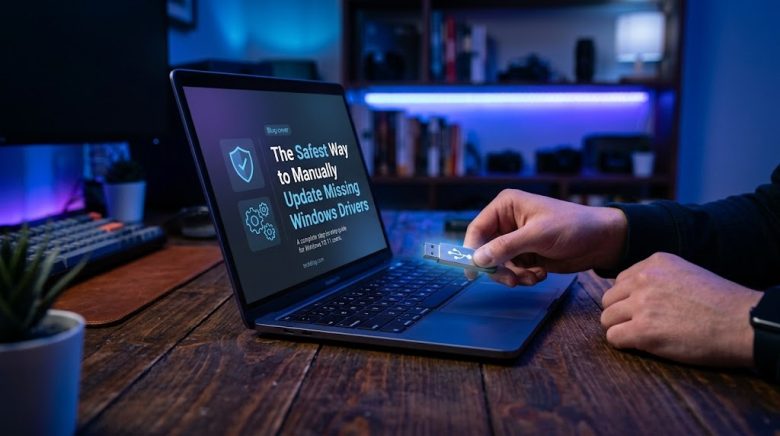
You have just finished completely reinstalling Windows. You are feeling good about your clean, lightning-fast operating system. But when you boot up to the desktop, you notice something is horribly wrong. The screen resolution is stretched and stuck at a blurry 800×600. Your Wi-Fi adapter is completely invisible. And when you plug in your favorite gaming mouse, absolutely nothing happens.
Welcome to the headache of missing Windows drivers. When faced with this frustration, most people turn to Google and search for “Free Driver Updater.” Within seconds, they are bombarded with flashy advertisements for third-party software promising to “Scan and Fix All Missing Drivers in One Click!”
Here is the unfiltered truth from the IT industry: Do not download those third-party driver updaters. Most of them are borderline malware. They are packed with bloatware, they charge hidden premium fees, and worse, they frequently install the wrong, incompatible drivers that result in the dreaded Blue Screen of Death (BSOD).
A driver is essentially the digital translator that allows your Windows operating system to speak to your physical hardware (like your graphics card, motherboard, or audio chip). When that translator is missing, the hardware simply ceases to exist to your computer.
In this comprehensive guide, we are going to walk through the absolute safest, most reliable methods to manually hunt down and install missing Windows drivers, exactly how professional IT technicians do it.
Method 1: The “Optional Updates” Feature in Windows (The First Line of Defense)
Before you go hunting across the web for drivers, you need to let Windows try to do the heavy lifting. In both Windows 10 and Windows 11, Microsoft has a massive repository of verified, safe drivers. However, they hide the hardware drivers in a section most users completely ignore.
How to find Optional Driver Updates:
- Press the Windows Key + I to open your Settings app.
- Navigate to Windows Update.
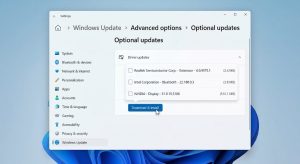
- Check for general updates first. Once that is clear, look for the Advanced options menu.
- Under the “Additional options” section, click on Optional updates.
- Here, you will see an expandable menu labeled Driver updates.
- Expand this list. You will likely see a list of obscurely named items (like “Realtek – Net” or “Intel – System”). Check the boxes next to all of them, and click Download and install.
This is the safest method because these drivers have passed Microsoft’s Windows Hardware Quality Labs (WHQL) testing. They are guaranteed not to crash your system.
Method 2: Device Manager (The Built-in Detective)
If Windows Update couldn’t find what you need, your next stop is the Device Manager. This built-in utility is the ultimate control panel for your hardware. It tells you exactly what is working, what is broken, and what is missing entirely.
- Right-click the Start button in the bottom left corner of your screen.
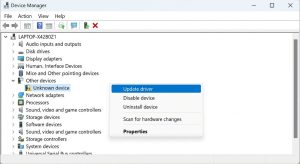
- Select Device Manager from the context menu.
- Scan the list of categories. You are looking for any device that has a Yellow Triangle with an Exclamation Mark next to it, or anything listed simply as an “Unknown Device”.
- Right-click the problematic device and select Update driver.
- Choose Search automatically for drivers.
If Windows finds one locally, it will install it. If it says “The best drivers for your device are already installed” (but the device still isn’t working), you need to move on to Method 3. Windows is notoriously bad at finding drivers for brand-new or highly specialized hardware via this automatic search.
Method 3: Official Manufacturer Support Pages (The Gold Standard)
If you own a pre-built desktop or a laptop from a major brand (like Dell, HP, Lenovo, or Asus), the absolute safest place to get a driver is directly from their official support website.
These manufacturers specifically customize hardware for their laptops. A generic Intel audio driver might not work perfectly with your specific HP laptop speakers, but the custom driver provided on HP’s website will.
How to find your exact driver:
- First, find your exact system model. Press Windows Key + R, type
msinfo32, and press Enter. Look for the row labeled System Model (e.g., XPS 15 9510 or ThinkPad T14). - Open your web browser and search for your laptop’s manufacturer followed by “support drivers” (e.g., “Dell Support Drivers”).
- Navigate to the official manufacturer’s website. Ensure the URL is legitimate (dell.com, hp.com, lenovo.com).
- Enter your System Model or your device’s unique Serial Number / Service Tag (usually found on a sticker on the bottom of the laptop).
- The website will generate a list of drivers tailor-made for your exact machine. Download the missing driver (usually Network, Audio, or Chipset) and run the installer.
Method 4: The Hardware ID Trick (For Stubborn “Unknown Devices”)
This is the secret weapon used by IT professionals worldwide. Sometimes, Device Manager just says “Unknown Device.” It doesn’t tell you if it is a webcam, a Bluetooth chip, or a motherboard controller. You cannot download a driver if you don’t even know what the hardware is.
Every single piece of computer hardware ever manufactured has a unique digital fingerprint called a Hardware ID. Here is how to use it to identify the mystery component:
- Open Device Manager, right-click your “Unknown Device,” and select Properties.
- Navigate to the Details tab at the top.
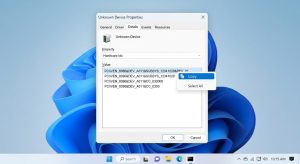
- Click the Property drop-down menu and select Hardware Ids.
- In the “Value” box below, you will see a few lines of confusing text. You want to look at the very top line. It will look something like this:
PCI\VEN_10EC&DEV_8168&SUBSYS... - Right-click that top line and select Copy.
- Now, open Google and paste that exact string into the search bar.
Google will immediately identify what that string belongs to. You will quickly discover that VEN_10EC stands for Realtek, and DEV_8168 is a Gigabit Ethernet Controller.
Now that you know exactly what the mystery hardware is, you can go to Realtek’s official website, or your motherboard manufacturer’s website, and download the exact driver you need.
What to Avoid: The Trap of Third-Party Driver Updaters
It is crucial to reiterate why you should avoid software like Driver Booster, Driver Easy, or Snappy Driver Installer. While some of these tools occasionally work, the risk-to-reward ratio is terrible. These programs scan your PC, cross-reference it with massive, often unverified databases, and force-install drivers in the background. Because they try to apply generic drivers to customized laptop hardware, they frequently overwrite perfectly functional drivers with incompatible versions.
This is the leading cause of random system crashes, audio stutters, and the inability to wake your computer from sleep mode. Furthermore, many of these “free” programs hold your drivers hostage, scanning your PC to tell you that you have 15 “critical missing drivers,” but demanding a $30 subscription fee before they will actually install them. Updating drivers manually ensures you maintain absolute control over what is being injected into your operating system’s core registry.
Conclusion
Missing drivers can make a powerful computer feel like a broken toy. However, resolving the issue doesn’t require risky third-party software or paying a computer repair shop. By utilizing Windows Update’s Optional features, leveraging the Device Manager, downloading directly from official manufacturer websites, and utilizing the Hardware ID trick for stubborn components, you can safely and permanently stabilize your system. Remember: when it comes to the software that controls your hardware, taking the manual, verified route is always the smartest choice.
Frequently Asked Questions
Do I need to update my drivers if my computer is working perfectly fine?
Generally, no. The golden rule of IT is: “If it isn’t broken, don’t fix it.” If your Wi-Fi is fast, your audio is clear, and your games are running smoothly, there is no need to manually update your drivers just for the sake of having the newest version. The only exception is your Graphics Card (GPU) driver, which should be updated regularly for the latest video game optimizations.
What does WHQL mean?
WHQL stands for Windows Hardware Quality Labs. When a driver is WHQL-certified, it means the hardware manufacturer (like Intel or AMD) submitted the driver to Microsoft. Microsoft then rigorously tested the driver to ensure it is stable, secure, and will not crash the Windows operating system. Always prioritize WHQL drivers when possible.
Why does my screen go black when installing a graphics driver?
This is completely normal. When you install a new driver for your graphics card (like an NVIDIA or AMD update), Windows has to temporarily disable the old driver to install the new one. During these few seconds, your monitor loses its signal, causing it to go black or flicker before coming back on with the new driver initialized.
Can a wrong driver physically damage my hardware?
Physical damage is incredibly rare but not entirely impossible. The most common scenario where a bad driver causes physical harm involves cooling systems. If a buggy motherboard driver misreads temperature sensors, it might fail to turn on your laptop’s cooling fans, which could lead to your processor overheating. This is why downloading drivers exclusively from official manufacturer sources is so vital.
Sources & References
- Microsoft Learn Documentation: Official guidelines on device driver management, Windows Hardware Quality Labs (WHQL) certification processes, and utilizing Device Manager diagnostics.
- PCI-SIG (Peripheral Component Interconnect Special Interest Group): Technical documentation regarding Vendor IDs (VEN) and Device IDs (DEV) classification for hardware identification.
- Intel Support Knowledge Base: Best practices for clean driver installations, troubleshooting “Unknown Devices,” and the differences between generic and OEM-specific drivers.