
It is the ultimate modern-day paradox. You click on your Wi-Fi icon, enter your password, and watch the connection establish. The signal bars are completely full. Your PC confirms that the network is “Secured.” You open your web browser, ready to work, only to be greeted by the infamous offline dinosaur game and the maddening message: “No Internet, Secured.”
How can a connection be perfectly secure but provide absolutely no internet?
This specific Windows error is incredibly frustrating because it feels like a contradiction. However, in the networking world, it makes perfect sense. “Secured” simply means that your laptop successfully authenticated the Wi-Fi password and established a local connection to your router. “No Internet” means that either your router cannot communicate with the outside world, or your Windows PC has a software glitch preventing it from resolving web addresses.
If your phone is connected to the exact same Wi-Fi network and loading web pages just fine, the problem is isolated to your PC. In this comprehensive guide, we are going to bypass the generic “turn it off and on again” advice and dive into the proven, step-by-step technical fixes to permanently resolve this error on Windows 10 and Windows 11.
Step 1: Flush Your DNS and Reset TCP/IP
When your computer connects to the web, it uses a complex system of IP addresses and DNS (Domain Name System) caches to remember where websites live. Over time, this cache can become corrupted or fall out of sync with your router’s assigned IP protocols.
Flushing the DNS and resetting the TCP/IP stack is the digital equivalent of clearing your computer’s networking throat. It is the most effective fix for the “No Internet, Secured” error.
How to execute the network reset commands:
- Press the Windows Key, type
cmdinto the search bar. - Right-click on Command Prompt and select Run as administrator. (This step is crucial; these commands require elevated privileges).
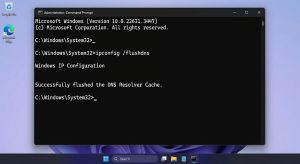
- A black terminal window will appear. You are going to type the following commands exactly as they appear, pressing Enter after each one. Do not rush; wait for the success message before typing the next command:
-
netsh winsock reset -
netsh int ip reset -
ipconfig /release -
ipconfig /renew -
ipconfig /flushdns
-
- Once you have successfully flushed the DNS resolver cache, close the Command Prompt and restart your PC.
Step 2: Manually Assign Google or Cloudflare DNS Servers
Sometimes, the connection between your PC and your router is perfectly fine, but the default DNS server provided by your Internet Service Provider (ISP) is down or malfunctioning. When this happens, your PC cannot translate web addresses (like google.com) into IP addresses, resulting in a “No Internet” status.
By manually changing your PC’s DNS server to a reliable, blazing-fast public server (like Google’s or Cloudflare’s), you can completely bypass your ISP’s faulty routing.
How to change your IPv4 DNS settings:
- Press the Windows Key + R to open the Run dialog.
- Type
ncpa.cpland press Enter. This will instantly open the Network Connections window. - Right-click on your active Wi-Fi adapter and select Properties.
- In the list of items, scroll down and click once on Internet Protocol Version 4 (TCP/IPv4) to highlight it, then click the Properties button below it.
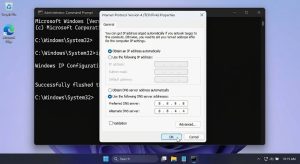
- In the new window, look at the bottom half and select the radio button for Use the following DNS server addresses.
- To use Google’s DNS, enter the following numbers:
-
Preferred DNS server:
8.8.8.8 -
Alternate DNS server:
8.8.4.4
-
- Check the box that says Validate settings upon exit, click OK, and then close all windows. Your PC will do a quick network diagnostic and should immediately connect to the internet.
Step 3: Disable IPv6 (Internet Protocol Version 6)
IPv6 is the modern standard for internet protocol addresses, designed to replace the older IPv4 standard because the world is running out of unique IP addresses. While IPv6 is the future, it is currently notorious for causing compatibility issues.
Many older home routers, or budget routers provided by ISPs, do not handle IPv6 traffic properly. When Windows tries to force a connection using this protocol, the router gets confused, resulting in a “Secured” connection with absolutely no data transfer. Disabling it forces Windows to rely on the rock-solid IPv4 standard.
How to disable IPv6:
- Open the Run dialog again (Windows Key + R) and type
ncpa.cpl. - Right-click your Wi-Fi connection and select Properties.
- Scroll through the list of networking items until you see Internet Protocol Version 6 (TCP/IPv6).
- Uncheck the box next to it.
- Click OK to save the changes.
- Disconnect from your Wi-Fi network and reconnect to see if the internet access has been restored.
Step 4: Disable “Random Hardware Addresses” (Windows 10 & 11)
To protect your privacy in public places (like coffee shops or airports), Windows has a feature called “Random Hardware Addresses.” It constantly spoofs your PC’s MAC address so that tracking networks cannot build a profile on you.
However, home routers often use MAC addresses to assign IP addresses and manage connected devices. If your Windows PC keeps changing its MAC address, your home router might flag the behavior as suspicious and block internet access to your device, even though it allows you to connect securely to the local network.
How to turn off MAC randomization:
- Open the Windows Settings app (Windows Key + I).
- Go to Network & Internet.
- Click on Wi-Fi from the left sidebar (or main menu in Windows 11).
- Look for the toggle switch labeled Use random hardware addresses and turn it Off.
- Alternatively, click on Manage known networks, select your home Wi-Fi network, and turn off random hardware addresses specifically for your home connection.
Step 5: Update or Reinstall the Network Adapter Driver
If you have tried all the network configurations above and your PC still refuses to pass data through the router, the software that controls your Wi-Fi chip—the driver—is likely corrupted. A bad Windows update can easily overwrite a perfectly functioning Wi-Fi driver with a generic, incompatible version.
How to perform a clean driver installation:
- Right-click the Start button and select Device Manager.
- Expand the Network adapters section.
- Find your primary Wi-Fi adapter (it will usually have “Wireless”, “Wi-Fi”, “Intel”, or “Realtek” in the name).
- Right-click it and choose Uninstall device.
- If a checkbox appears asking to “Delete the driver software for this device,” check it, and proceed with the uninstallation.
- Once the Wi-Fi adapter disappears from the list, click on Action in the top menu bar, and select Scan for hardware changes.
- Windows will automatically detect the missing Wi-Fi chip and install a fresh, clean default driver. Restart your PC.
Conclusion
The “No Internet, Secured” error is a classic example of a communication breakdown between your Windows operating system and your local network hardware. By methodically working through these steps—flushing your DNS cache, overriding faulty ISP DNS servers with Google’s public servers, and disabling conflicting protocols like IPv6—you can strip away the software glitches and force a clean, unhindered connection to the world wide web.
Frequently Asked Questions (FAQs)
Why does my phone have Wi-Fi internet, but my PC says “No Internet, Secured”?
This confirms that your router and your ISP are functioning perfectly. The issue is entirely localized to your PC’s software. Your computer is likely suffering from a corrupted DNS cache, a misconfigured IP assignment, or a failing network driver, which is why the troubleshooting steps above are necessary.
Is it safe to use Google’s 8.8.8.8 DNS server?
Yes, it is completely safe and is actually one of the most reliable and fastest public DNS servers in the world. Many tech professionals permanently switch their home networks to Google DNS (8.8.8.8) or Cloudflare DNS (1.1.1.1) to avoid the slow load times and random outages commonly associated with default ISP DNS servers.
What does it mean to “Flush the DNS”?
Your computer keeps a local address book (the DNS cache) of every website you visit so it can load them faster the next time. If a website changes its server, or if this cache gets corrupted, your PC tries to connect to an outdated address, resulting in connection errors. “Flushing” simply deletes this local address book, forcing your PC to fetch fresh, accurate web addresses from the internet.
Could my antivirus be causing the “No Internet” error?
Yes. Third-party antivirus programs and firewalls (like McAfee, Norton, or Bitdefender) sometimes receive updates that mistakenly identify your local home network as a public threat. If none of the networking fixes work, try temporarily disabling your third-party firewall to see if internet access is restored. If it is, you will need to whitelist your home network in the antivirus settings.
Sources & References
- Microsoft Support Documentation: Official guidelines for troubleshooting Windows 10 and Windows 11 Wi-Fi connection issues, including advanced command-line TCP/IP resets.
- Google Public DNS Documentation: Technical overviews on the benefits and implementation of public DNS resolvers for bypassing ISP routing failures.
- Cisco Networking Academy: Architectural breakdowns of IPv4 vs. IPv6 protocols and their compatibility limitations with legacy consumer-grade routing hardware.