
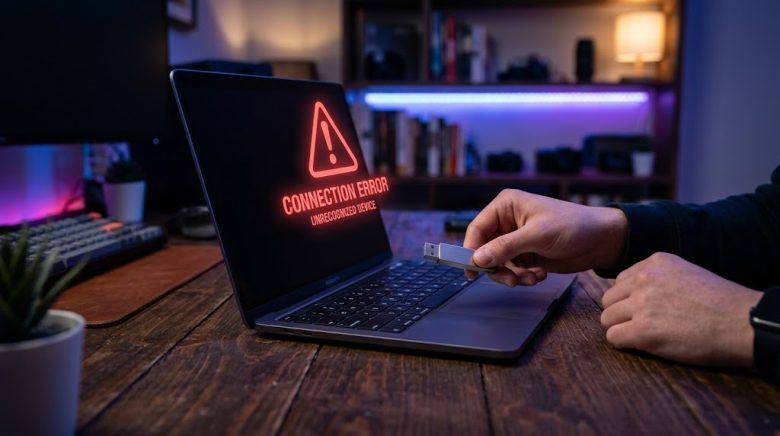
We have all experienced this miniature heart attack at least once. You have an important presentation, a folder full of irreplaceable family photos, or a critical software backup stored safely on your trusty USB flash drive. You plug it into your Windows PC, expecting to hear that familiar, reassuring chime that lets you know the drive is connected.
Instead, there is absolute silence. You open File Explorer, and your drive is nowhere to be found. You unplug it, blow on the connector like an old Nintendo cartridge, and plug it back in. Still nothing. Or perhaps worse, you get a menacing pop-up notification from Windows declaring: “USB Device Not Recognized. The last USB device you connected to this computer malfunctioned, and Windows does not recognize it.”
Before you panic and assume your data is lost forever to the digital void, take a deep breath. In the vast majority of cases, your USB drive is perfectly fine. The failure to recognize external storage is incredibly common in Windows 10 and Windows 11, and it is almost always caused by a software miscommunication, a driver conflict, or an overly aggressive power-saving feature, rather than catastrophic hardware failure.
In this comprehensive troubleshooting guide, we are going to walk through the exact steps IT professionals take to force a stubborn Windows PC to read an unrecognized USB drive. We will start with the absolute basics and move into advanced system diagnostics. Let’s get your data back.
Step 1: The Preliminary Hardware Triage
Before we start diving into the Windows operating system settings, we need to rule out the most basic physical hardware issues. Sometimes, the most complex-seeming problems have the simplest solutions.
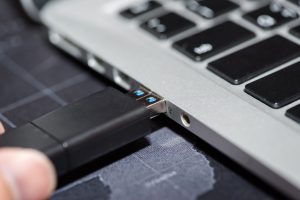
1. Try a different USB port:
Not all USB ports on your computer are wired exactly the same. Desktop computers, in particular, have front-panel USB ports that connect to the motherboard via an internal cable. These cables can become loose over time. Unplug your USB drive and plug it directly into one of the USB ports on the back of your computer case (the ones attached directly to the motherboard).
2. Isolate the drive from hubs:
If you are using a USB hub (a device that turns one USB port into four or more), unplug it. Many unpowered USB hubs simply cannot draw enough electrical current from the PC to spin up modern, high-capacity flash drives or external hard drives. Plug your drive directly into the PC.
3. The cross-device test:
This is the ultimate diagnostic step. Plug your unrecognized USB drive into a completely different computer—preferably one running a different operating system, like a MacBook or a Chromebook.
- If the second computer reads the drive perfectly, you know with 100% certainty that your drive is healthy and your PC has a software glitch. Keep reading.
- If the second computer also fails to recognize the drive, the USB stick itself has likely suffered a hardware failure, meaning the internal controller chip has died.
Step 2: Investigate Using Windows Disk Management
If your drive isn’t showing up in standard File Explorer, it doesn’t mean Windows doesn’t see it. File Explorer only displays drives that are properly formatted and assigned a drive letter (like C: or D:). To see exactly what your computer is detecting at a raw hardware level, we need to use a built-in tool called Disk Management.
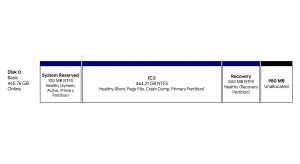
How to check Disk Management:
- Right-click on the Windows Start button in the bottom left corner of your screen.
- From the context menu, select Disk Management.
- A window will open displaying all storage devices connected to your motherboard. Look at the bottom half of the window. You will see your main hard drive (Disk 0) and likely a CD/DVD drive.
- Scroll down and look for a “Removable” disk.
Depending on what you see here, your next step will vary:
- Scenario A (Unallocated Space): If you see your USB drive, but the block of space next to it is black and labeled “Unallocated,” it means the drive’s file system has been corrupted or erased. You will need to right-click the black space, select “New Simple Volume,” and format it (Note: This will erase the data, so use recovery software first if the files are critical).
- Scenario B (No Drive Letter): If you see your drive and it says “Healthy,” but it lacks a letter (like E: or F:), Windows simply forgot to assign it a path. Right-click the healthy partition, select Change Drive Letter and Paths, click Add, pick a letter, and hit OK. Your drive will instantly pop up in File Explorer.
- Scenario C (Not Listed at All): If the drive is completely absent from Disk Management, Windows is failing to load the driver that makes the USB port function. We need to fix the USB controllers.
Step 3: Reinstall the USB Controllers in Device Manager
Your computer communicates with your USB ports using software called “Controllers.” Over time, through constant plugging and unplugging, or due to a messy Windows update, these controller drivers can become corrupted. Reinstalling them forces Windows to establish a fresh, clean connection with your hardware.
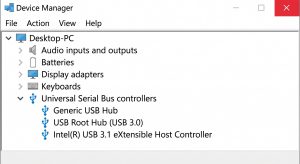
How to wipe and refresh your USB drivers:
- Right-click the Start button and select Device Manager.
- Scroll down to the very bottom of the list and click the arrow next to Universal Serial Bus controllers to expand the category.
- You will see several items here, including “USB Root Hub” and “Generic USB Hub”.
- Right-click the first USB Root Hub on the list and select Uninstall device. Don’t worry—your PC won’t break, though your mouse or keyboard might temporarily freeze if they are connected to that specific hub.
- Repeat this process for every single “USB Root Hub” listed.
- Once they are all uninstalled, restart your computer.
When Windows boots back up, it will realize its USB drivers are missing and will automatically reinstall fresh, uncorrupted versions straight from its internal registry. Plug your flash drive back in; it should now be recognized instantly.
Step 4: Disable the “USB Selective Suspend” Setting
Windows laptops (and even some desktops) are programmed to aggressively save power. One of the ways Windows does this is by utilizing a feature called “USB Selective Suspend.” When Windows thinks a USB port is not actively transferring data, it will cut the electrical power to that specific port to save battery life.
Unfortunately, this feature is notoriously buggy. Sometimes, it cuts power to a port and refuses to turn it back on when you plug a drive in, resulting in the “USB Device Not Recognized” error. Disabling this feature ensures your ports always have the power they need.
How to turn off power throttling:
- Press the Windows Key, type Control Panel, and hit Enter.
- In the top right corner, change the “View by” setting to Large icons.
- Click on Power Options.
- Next to your selected power plan (e.g., Balanced or High Performance), click Change plan settings.
- On the next screen, click Change advanced power settings.
- A small window will pop up. Scroll down and expand the USB settings category (click the little plus sign).
- Expand USB selective suspend setting.
- Change the setting from Enabled to Disabled. (If you are on a laptop, do this for both “On battery” and “Plugged in”).
- Click Apply, then OK, and restart your PC.
Step 5: Clean Up Hidden Ghost Devices
Every single time you plug a new USB device into your computer—a mouse, a printer, a friend’s flash drive, a webcam—Windows installs a driver for it and keeps a hidden record of it. If you have been using the same computer for years, you might have hundreds of “ghost” drivers conflicting with one another in the background.
We can force Windows to reveal these hidden ghosts and delete them to prevent interference with your current USB drive.
How to clear the USB registry cache:
- Right-click the Start button and open Device Manager.
- Click on View in the top menu bar, and select Show hidden devices.
- Expand the Universal Serial Bus controllers section again.
- You will now see dozens of greyed-out, semi-transparent icons. These are the ghosts of USB devices past.
- Right-click on every greyed-out “Unknown USB Device” or faded “Mass Storage Device” and select Uninstall device.
- Clear them all out to give your registry a clean slate. Plug your drive back in.
Conclusion
A USB drive failing to register on your PC is an incredibly frustrating roadblock, especially when you are in a rush to access vital files. However, by methodically working through the operating system’s layers—from verifying the physical port integrity to assigning drive letters in Disk Management, refreshing the USB controller drivers, and preventing aggressive power-saving protocols from shutting down your ports—you can almost always force your computer to re-establish a secure connection. Keep this checklist handy, and you will never have to panic over a silent USB port again.
Frequently Asked Questions (FAQs)
Will uninstalling USB Root Hubs in Device Manager delete my files?
Absolutely not. Uninstalling a device driver only removes the software that allows Windows to talk to the USB port. It does not touch the actual data stored on your hard drive or the data stored on the flash drive itself. Windows will safely reinstall those communication drivers upon the next system restart.
Why does my USB drive say it needs to be formatted before I can use it?
If Windows detects the drive but gives you a pop-up saying “You need to format the disk in drive X: before you can use it,” this means the file system on the flash drive has become corrupted (often caused by unplugging the drive while it is still writing data). Do not click format if you want to keep your files. Formatting will erase everything. You must use third-party data recovery software (like Recuva or EaseUS) to extract your files first before allowing Windows to format the drive.
Does the file system format (FAT32 vs. NTFS vs. exFAT) matter?
Yes, significantly. If your USB drive was formatted on a Mac using the Apple File System (APFS) or Mac OS Extended, a Windows PC will not be able to read it natively without specialized third-party software. For maximum compatibility between Windows, Mac, and devices like smart TVs or game consoles, you should always ensure your USB drives are formatted using the exFAT file system.
Can a computer virus cause my USB drive to be unrecognized?
While rare, certain types of malware (like the infamous shortcut virus or autorun trojans) can hide the contents of your USB drive or modify its registry permissions so Windows actively blocks it from mounting. If you suspect this is the case, boot your PC into Windows Safe Mode and run a full system scan using Windows Defender or Malwarebytes.
Sources & References
- Microsoft Support Documentation: Official IT troubleshooting guidelines for Universal Serial Bus (USB) errors in Windows 10 and Windows 11, including Disk Management partitioning.
- Windows Sysinternals: Technical overviews of Windows Advanced Power Management (APM) and the behavioral impacts of the “USB Selective Suspend” feature on peripheral connectivity.
- Kingston Technology Knowledge Base: Manufacturer specifications regarding NAND flash memory behavior, file system compatibility (FAT32 vs. exFAT), and proper ejection protocols to prevent data corruption.