
Launching a new blog is only the first half of the digital publishing equation. The second half is ensuring search engines actually know your content exists. You can write the most comprehensive, AdSense-ready articles in your niche, but if Google’s crawling bots cannot find, parse, and index your URLs, your daily organic traffic will remain at zero.
Google Search Console (GSC) is the definitive command center for managing how your website interacts with the world’s largest search engine. It is not merely an analytics tool; it is a direct communication line to Googlebot. For new niche blogs, properly configuring GSC is the fastest way to overcome initial indexation delays, identify crawling bottlenecks, and prove to ad networks that your site is a functioning, well-maintained property.
This technical checklist walks you through the exact sequence of steps required to submit a brand-new blog to Google Search Console, eliminating the guesswork and ensuring your site architecture is primed for rapid indexing.
Phase 1: The Pre-Submission Technical Audit
Before you even log into Google Search Console, your website must be structurally ready to receive search engine crawlers. Submitting a broken or blocked site will result in immediate crawl errors that can take weeks to clear from Google’s cache.
1. Verify Your WordPress robots.txt Configuration
Your robots.txt file acts as the bouncer for your website, telling search engine bots which directories they are allowed to scan and which they must ignore.
- Open your browser and navigate to
[yourdomain.com/robots.txt](https://yourdomain.com/robots.txt). - Ensure you do not see a line that says
Disallow: /. This single line blocks all search engines from indexing your entire site. - A healthy
robots.txtfor a new blog should look like this:
User-agent: *
Disallow: /wp-admin/
Allow: /wp-admin/admin-ajax.php
Sitemap: https://yourdomain.com/sitemap_index.xml
2. Generate a Dynamic XML Sitemap
A sitemap is a highly structured XML file that lists every published URL on your blog, along with its last modified date. Rather than forcing Googlebot to click through your menus to find new articles, a sitemap hands the bot a direct map of your content.
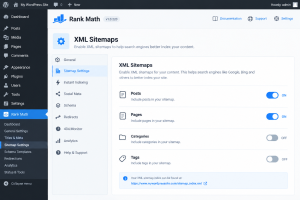
- Install an SEO plugin like Rank Math, Yoast SEO, or All in One SEO.
- Navigate to the plugin settings and enable the XML Sitemap feature.
- Click the generated link (usually
[yourdomain.com/sitemap_index.xml](https://yourdomain.com/sitemap_index.xml)or[yourdomain.com/sitemap.xml](https://yourdomain.com/sitemap.xml)) and visually confirm that it loads a structured list of your posts, pages, and category archives. - Exclude thin content from your sitemap, such as author archives, tags, and attachment/media URLs. AdSense and Google both penalize sites that index hundreds of low-value, single-image pages.
Phase 2: Property Setup and Verification
With your site architecture ready, it is time to establish ownership in Google Search Console.
1. Choose the Right Property Type
When you click “Add Property” in GSC, you are presented with two options: Domain Property and URL Prefix Property.
- Domain Property (Recommended): This captures all data across all subdomains (e.g.,
blog.yoursite.com), bothhttpandhttps, and bothwwwandnon-wwwversions. It provides a complete, unified view of your site’s performance. - URL Prefix Property: This only tracks the exact URL string you enter (e.g.,
[https://www.yourdomain.com](https://www.yourdomain.com)). If a user visits the non-www version, that data is lost unless you verify multiple properties.
2. Execute DNS TXT Record Verification
If you chose the Domain Property route, you must verify ownership via your domain registrar (Namecheap, GoDaddy, Cloudflare, etc.).
- Copy the unique TXT record string provided by Google Search Console.
- Log into your domain registrar or CDN dashboard and open your DNS settings.
- Add a new DNS record. Set the Type to TXT, the Name/Host to
@(or leave it blank, depending on your provider), and paste the Google string into the Value field. - Save the record and wait a few minutes. Return to GSC and click Verify. DNS propagation is usually instant, but it can occasionally take up to 24 hours.
Phase 3: Submitting Your Maps and Feeds
Verification simply grants you access to the dashboard. You must now actively feed your site data to Google.
1. Submit the Primary XML Sitemap
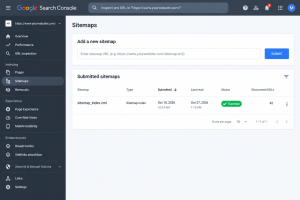
Navigate to the Sitemaps tab in the left-hand GSC menu.
- Under “Add a new sitemap,” enter the exact URL slug of your sitemap (e.g.,
sitemap_index.xml). - Click Submit.
- Look at the “Status” column. It should read Success in green text. If it reads “Couldn’t fetch,” refresh the page. If the error persists, clear your website cache and ensure your hosting firewall is not blocking Googlebot IPs.
2. Submit the RSS Feed for Rapid Discovery
While XML sitemaps are great for overall site structure, RSS feeds are designed to update instantly when a new post goes live. Submitting your RSS feed alongside your sitemap can significantly speed up the indexation of brand-new articles.
- In the same Sitemaps submission box, type
feed/(for standard WordPress sites) so the full URL is[yourdomain.com/feed/](https://yourdomain.com/feed/). - Click Submit. Google will now monitor this feed specifically for newly published content.
Phase 4: Manual URL Inspection and Crawl Requests
You do not need to wait passively for Google to process your sitemap. For a brand-new blog, you want to force Google to look at your most important foundational pages immediately.
1. Inspect Your Core Pages
At the top of the GSC interface, you will see a search bar labeled Inspect any URL.
- Paste the exact URL of your homepage and hit Enter.
- The system will retrieve data from Google’s index. Because your site is new, it will likely return a gray screen stating: “URL is not on Google.”
2. Request Indexing
- Click the Test Live URL button in the top right corner. Google will run a live ping to ensure the page is accessible, mobile-friendly, and not blocked by any tags.
- Once the live test passes, click the Request Indexing button. This places your URL in a priority queue for the Googlebot crawler.
- Repeat this exact process for your most critical legal pages (Privacy Policy, Terms & Conditions, Disclaimer, Contact Us) and your first 3 to 5 cornerstone articles. Having these pages indexed quickly builds trust and is a strict prerequisite for manual AdSense reviews.
Phase 5: Monitoring Indexation and Resolving Errors
After submitting your sitemaps and requesting indexation, wait 48 to 72 hours before returning to GSC. The most valuable data for a new publisher lives inside the Pages report (formerly the Coverage report).
1. Understanding the Page Indexing Report
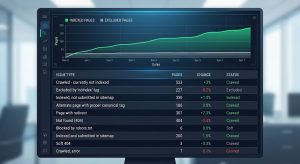
Navigate to Indexing > Pages. You will see a chart dividing your URLs into two categories: Indexed (green) and Not Indexed (gray). Scroll down to the “Why pages aren’t indexed” table. For new blogs, you will commonly encounter two specific statuses that require your attention:
- Discovered – currently not indexed: Google has seen the URL in your sitemap, but its crawling queue was too busy to actually visit the page. This is incredibly common for new sites with no backlink authority. The solution is patience; Google will eventually crawl it.
- Crawled – currently not indexed: This is a more serious warning. Googlebot visited the page, read the content, and decided it was not worth putting into the search engine. If you see this on your primary articles, it usually indicates thin content, duplicate content, or a lack of user value. You must improve the article’s depth, add original images, and restructure the formatting before clicking “Validate Fix” in GSC.
Phase 6: Finalizing Regional and Core Web Vitals Settings
To complete your GSC setup and ensure long-term stability, configure your localization and monitor your site speed.
1. Check Mobile Usability
Navigate to Experience > Mobile Usability. Google indexes the mobile version of your site first (Mobile-First Indexing). If your font is too small to read on a phone, or your clickable buttons are too close together, GSC will flag errors here. Fixing these is mandatory, as poor mobile usability will prevent pages from ranking and can negatively impact AdSense ad rendering.
2. Monitor Core Web Vitals
Under the Experience tab, the Core Web Vitals report measures how fast your site loads and how stable the layout is while rendering (LCP, FID, and CLS). A new WordPress site heavily weighed down by page builders or unoptimized images will fail these tests. Install a caching plugin and compress all your .webp images to ensure these metrics remain in the “Good” (green) zone.
By executing this checklist systematically, you remove all technical barriers between your new blog and Google’s crawling bots. A fully integrated Google Search Console property ensures your content is indexed accurately, giving your site the visibility required to generate organic traffic and successfully monetize with display ad networks.
Frequently Asked Questions (FAQs)
1. How long does it take for Google to index a new blog after submitting the sitemap?
For a brand-new domain with no external backlinks, indexation can take anywhere from a few days to a few weeks. Submitting your XML sitemap and manually requesting indexation for your homepage and core pillar articles can speed this process up, often resulting in initial indexation within 48 to 72 hours.
2. Do I need Google Search Console to get approved for Google AdSense?
While GSC is not a direct requirement listed in AdSense policies, it is practically mandatory. AdSense reviewers look for organic, high-quality sites that receive real traffic. If your site is not connected to GSC, your pages will not be indexed, you will not receive organic search traffic, and AdSense will likely reject the application for “low value content” or “no traffic.”
3. What is the difference between a sitemap and an RSS feed in GSC?
An XML sitemap is a comprehensive directory of every permanent page, post, and category on your entire website. An RSS feed is a dynamic stream containing only your most recent updates. Submitting both is best practice: the sitemap provides the structural overview, while the RSS feed alerts Googlebot to newly published articles instantly.
4. I see “Crawled – currently not indexed” on my new articles. How do I fix it?
This status means Googlebot read your page but chose not to index it. This usually points to a content quality issue. To resolve it, expand the word count, ensure the topic is thoroughly covered, add internal links from other indexed pages on your site, remove duplicate boilerplate text, and then click “Request Indexing” again.
5. Should I index my WordPress category and tag pages?
For a new niche blog, you should generally index your primary Category pages (as they serve as helpful content hubs for users), but you should set Tag pages to “noindex” using your SEO plugin. Indexing hundreds of thin tag pages can dilute your site’s overall quality score in Google’s eyes and waste your crawl budget.
References & Technical Sources
- Google Search Central Documentation: Introduction to Indexing and Google Search. https://developers.google.com/search/docs/fundamentals/how-search-works
- Google Search Central: Verify your site ownership. https://developers.google.com/search/docs/advanced/guidelines/verify-website
- Google Search Central: Build and submit a sitemap. https://developers.google.com/search/docs/advanced/sitemaps/build-sitemap
- Google Search Console Help: Page Indexing report overview & error definitions. https://support.google.com/webmasters/answer/7440203